How to Fix “The Requested Operation Requires Elevation” Error in Windows
The “The requested operation requires elevation” error appears when Windows blocks a task because it needs administrator-level permission. It commonly occurs while opening programs, running commands, changing protected files, or modifying system settings.
In most cases, the problem can be resolved by running the affected program as an administrator, checking account permissions, or adjusting access to the file or folder. The correct fix depends on where the message appears and what action you are trying to complete.
What This Error Means and When You’ll See It
Windows separates normal user actions from tasks that can change important system files or security settings. When an application attempts a protected action without sufficient permissions, Windows blocks it and prompts for elevation.
Elevation means approving the task through User Account Control or running it with administrator privileges. This protection helps prevent untrusted programs from making system-wide changes without your knowledge.
Typical error messages and scenarios
The message may appear as “The requested operation requires elevation,” “Access is denied,” or an error code such as 740. You may encounter it when opening an installer, running Command Prompt commands, copying files into protected folders, or changing network and security settings.
It can also occur when launching older software, accessing another user’s files, editing items inside Program Files or the Windows directory, or using a shortcut that does not request administrator permission.
Why Windows blocks actions that need elevation
Windows uses User Account Control to limit what programs can do with standard user permissions. Even administrator accounts usually run applications with standard access until the user approves a task that requires elevated rights.
This restriction protects system files, registry settings, installed programs, and other users’ data. When the required approval is missing or when the current account lacks administrator rights Windows blocks the action and displays the elevation error.
Common Causes
Frosty Mod Manager may fail to launch, apply mods, or access game files when Windows blocks its permissions or required components are damaged. These problems often appear after a game update, launcher reinstall, security software change, or moving the game to another drive.
Check permission-related causes first, then review antivirus settings and system components. Changing several settings at once can make it harder to identify the real cause.
Running the app without administrator rights
Frosty may need elevated permission to create the ModData folder, patch game files, or communicate with the game launcher. Without sufficient access, it may display an access-denied error or fail without showing a clear message.
Right-click the Frosty executable and select Run as administrator. If this solves the issue, open its Properties, go to the Compatibility tab, and enable the option to run the program as an administrator.
Incorrect file or folder ownership and NTFS permissions
The game folder may belong to another Windows account or allow only limited write access. This is common when the game was copied from another computer, restored from a backup, or installed on a secondary drive.
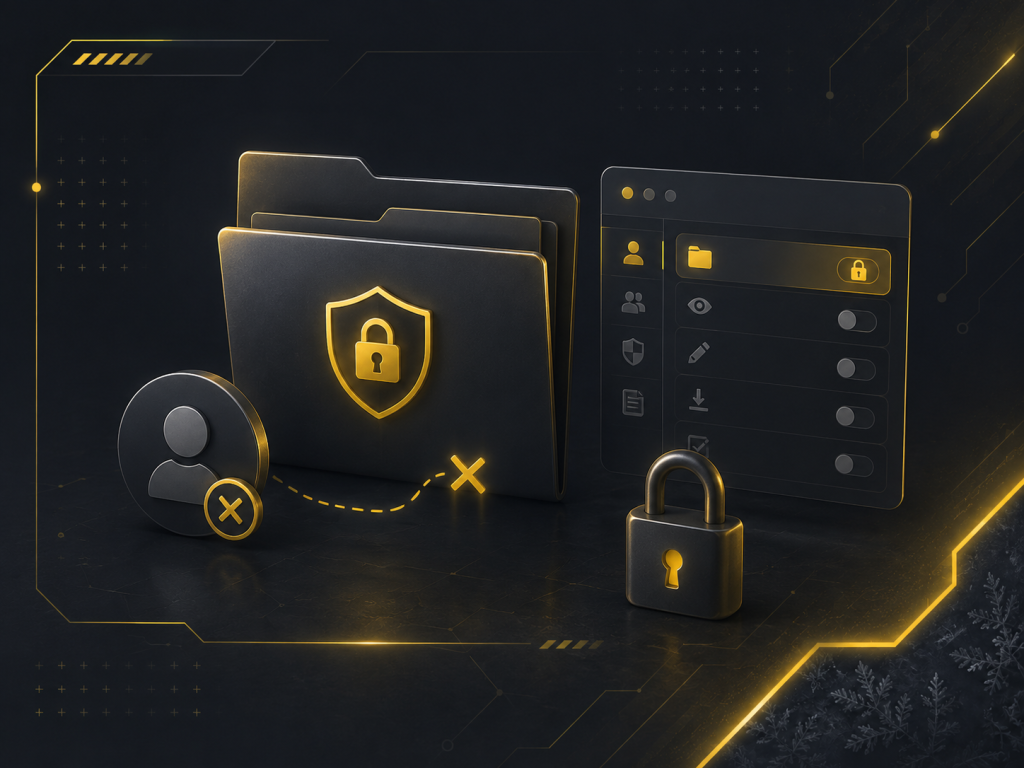
Check the Security tab in the folder’s Properties and confirm that your current account can read, write, and modify files. Avoid giving unrestricted access to everyone; update permissions only for the account that runs Frosty and the launcher.
User Account Control (UAC) restrictions
User Account Control can block Frosty when it attempts to modify files inside protected locations such as Program Files. Problems may also occur when Frosty runs as administrator but Steam or the EA app runs normally.
Use the same permission level for Frosty and the required launcher. Do not permanently disable UAC as a first solution, because doing so reduces Windows security and may not fix the underlying folder-permission issue.
Interference from antivirus or security policies
Antivirus software may quarantine Frosty files, block its temporary data, or prevent it from changing the game directory. Corporate or school security policies may also restrict unsigned applications and modding tools.
Check the antivirus protection history for blocked Frosty files. Add carefully limited exclusions for the trusted Frosty folder, game folder, or generated ModData directory rather than disabling protection completely.
Corrupt or outdated drivers, services, or app components
Damaged graphics drivers, Windows services, launcher files, or required runtime components can prevent Frosty or the game from starting correctly. The problem may manifest as a crash, a black screen, a missing interface, or an immediate return to the launcher.
Update Windows and the graphics driver, then repair or reinstall the EA app or Steam when necessary. You should also repair supported Microsoft Visual C++ and .NET components before reinstalling Frosty itself.
Quick Checks to Narrow Down the Problem
Before changing permissions or security settings, identify exactly where the elevation error occurs. The same message can be triggered by an application, installer, command, shortcut, or protected folder, and each situation may require a different fix.
Make one change at a time and repeat the original action after each test. This helps confirm whether the problem is related to the user account, a specific application, or Windows permissions.
Confirm the exact error, affected file/app, and reproducible steps
Write down the complete error message, including any error number such as 740. Note which application, file, command, or shortcut triggers it and whether the message appears during startup, installation, file copying, or system configuration.
Repeat the action once to confirm that the error is consistent. Also check whether right-clicking the affected program and selecting Run as administrator changes the result. Avoid changing folder ownership or disabling User Account Control until the affected item has been clearly identified.
Test with another user account or a different app
Sign in with another administrator account and repeat the same action. If it works there, the original Windows profile may have restricted permissions, damaged settings, or incorrect group membership.
You can also test a different trusted application that performs a similar task. When only one program produces the error, focus on its shortcut, installation folder, compatibility settings, and required permissions rather than changing system-wide security options.
Check Event Viewer and application logs
Open Event Viewer and review Windows Logs > Application and Windows Logs > System around the time the error occurred. Look for warnings or errors that mention the affected program, access restrictions, User Account Control, installer failures, or a blocked service.
Application-specific logs may provide clearer details than the Windows message. Check the program’s installation folder, local AppData directory, or built-in support menu for logs. Match the log timestamp with your test so unrelated warnings are not mistaken for the cause.
Step-by-Step Fixes (Start with Safest)
Begin with temporary administrator access before changing folder ownership or security permissions. Test Frosty after each step so you can identify which change solves the problem without making unnecessary system-wide adjustments.
Close Frosty, the game, and the EA app or Steam before starting. Reopen the required launcher after applying each fix, then launch the game through Frosty.
Run the program as administrator
Right-click the Frosty Mod Manager executable and select Run as administrator. Approve the User Account Control prompt, apply a small mod profile, and test whether the game launches correctly.
This is a temporary test and does not permanently change Frosty’s settings. If it fixes an access-denied, patching, or ModData-creation error, the problem is likely related to Windows permissions.
Set an app to always run as administrator via Compatibility settings
Right-click the Frosty executable, select Properties, and open the Compatibility tab. Enable Run this program as an administrator, click Apply, and then select OK.
Use the same permission level for related launchers. Running Frosty as an administrator while the EA app or Steam is running normally can sometimes cause communication problems. Disable this setting later if permanent elevation is not required.
Launch from an elevated Command Prompt or PowerShell
Search for Command Prompt or PowerShell, right-click it, and select Run as administrator. Navigate to the Frosty folder or start the executable by entering its complete file path.
In PowerShell, you can use:
Start-Process “C:\Path\To\FrostyModManager.exe” -Verb RunAs
Replace the example path with Frosty’s actual location. This method is useful for testing whether Frosty starts correctly outside a normal desktop shortcut.
Take ownership of the file or folder temporarily
Use this step only when your Windows account cannot modify the Frosty or game folder. Right-click the affected folder, open Properties > Security > Advanced, and check the listed owner and permissions.
Change ownership only for the specific Frosty, game, or ModData folder causing the error. Give your account modify access rather than unrestricted control where possible. Avoid taking ownership of Windows, launcher, or entire drive folders, as this can weaken security or disrupt installed applications.
Grant or correct NTFS permissions and inheritance
Incorrect NTFS permissions can prevent a user or application from opening, editing, or replacing a file. Right-click the affected file or folder, open Properties > Security, and check whether your account has the required read, write, modify, or full-control permissions.
Use Advanced Security Settings to confirm that permissions are inherited from the parent folder. Restore inheritance if it was accidentally disabled, and grant access only to the necessary user or group. Avoid changing ownership or giving full control to everyone on protected Windows folders.
Use Task Scheduler to run tasks with highest privileges
Task Scheduler can start a trusted program with elevated privileges without manually choosing “Run as administrator” each time. This is useful for scripts, maintenance tools, or applications that must regularly perform approved administrative tasks.
Open Task Scheduler, create a new task, select Run with highest privileges, and add the program under the Actions tab. Choose the correct user account and test the task manually before creating a shortcut. Only use this method for programs you trust, since the task can run with administrator-level access.
Temporarily adjust UAC settings
User Account Control may block an application when it does not request elevation correctly. Search for Change User Account Control settings, note the current level, and move the slider down by only one level for a temporary test.
Restart Windows if prompted, repeat the affected action, and then restore the original UAC setting. Do not leave UAC disabled, because it helps prevent unapproved programs from making system-wide changes.
Temporarily disable or adjust security/antivirus software
Security software may block an installer, executable, script, or protected-folder change and display an access or elevation-related error. Review the antivirus protection history or quarantine list before turning protection off.
When the file comes from a trusted source, create a narrow exception for the specific application or folder. If temporary disabling is required for testing, disconnect from untrusted networks, complete the test, and re-enable protection immediately. Never exclude the entire system drive.
Repair or reinstall the affected application
Use the application’s built-in repair option or Windows Installed apps settings when the error affects only one program. Repairing can restore missing files, correct service registrations, and rebuild shortcuts without removing personal settings.
If repair fails, back up the program’s data and uninstall it normally. Restart Windows, download a fresh installer from the official source, and run the installer as administrator. Test the application before restoring the old configuration files, since damaged settings may cause the same error to recur.
Run Windows troubleshooters, SFC, and DISM scans
Use Windows troubleshooters when update services, network components, or installed apps are not working correctly. Open Settings > System > Troubleshoot > Other troubleshooters, then run the troubleshooter related to the problem. Restart the computer before testing Frosty again.
For suspected system-file corruption, open Command Prompt as administrator and run these commands in order:
DISM.exe /Online /Cleanup-Image /RestoreHealth
sfc /scannow
Allow each scan to finish completely. Microsoft recommends running DISM before SFC so Windows can repair the component files that SFC may need.
Update Windows and device drivers
Open Settings > Windows Update, select Check for updates, and install available security, quality, and compatibility updates. Restart Windows afterward, even if the update doesn’t specifically request it, and then test Frosty with a small mod profile.
Check Windows Update > Advanced options > Optional updates for available driver updates. For graphics drivers, use the official NVIDIA, AMD, Intel, or computer manufacturer support page when Windows Update does not provide a suitable version. Avoid third-party driver-updater tools, as incorrect drivers can create new crashes or compatibility problems.
Advanced Troubleshooting
Use these methods only when standard fixes, such as running the app as administrator, correcting permissions, or reinstalling the program, do not resolve the error. Create a restore point and note the original settings before making advanced changes.
H3: Back up and modify registry keys related to elevation
UAC-related settings are stored under:
HKEY_LOCAL_MACHINE\SOFTWARE\Microsoft\Windows\CurrentVersion\Policies\System
Before editing anything:
- Open Registry Editor as administrator.
- Select the relevant key.
- Use File > Export to save a backup.
- Record the original value before changing it.
Values such as EnableLUA and ConsentPromptBehaviorAdmin control elevation behavior. Change only the setting related to the confirmed problem, and avoid permanently disabling UAC.
Resolve Group Policy or domain-level restrictions
Work or school computers may use Group Policy to control administrator access, software installation, and UAC prompts. These policies can override local settings and restore restrictions after a restart or sign-in.
Run the following command from an elevated Command Prompt:
gpresult /h policy-report.html
Open the generated report and look for policies related to UAC, application control, or software installation. On a managed computer, provide the report and exact error message to the system administrator instead of trying to bypass the restriction.
Use Sysinternals tools (Process Explorer, AccessChk) to diagnose permissions
Microsoft Sysinternals tools can help identify blocked files, incorrect permissions, and processes using protected resources.
- AccessChk: Shows whether a user has permission to access files, folders, registry keys, or services.
- Process Explorer: Displays running processes, user accounts, loaded files, and open handles.
Run these tools as administrator and inspect only the affected application or folder. Use the results to correct a specific permission rather than granting Full Control to broad groups.
H3: Perform a clean boot or system restore if necessary
A clean boot helps determine whether antivirus software, startup utilities, overlays, or background services are causing the elevation error. Hide Microsoft services first, disable the remaining third-party services, and then test the affected application.
If the error disappears, re-enable services in small groups until the conflicting program is found. Use System Restore only when the problem began after a recent driver, registry, application, or Windows configuration change and other fixes have failed.
How to Verify the Fix Worked
After applying a repair, test the same action that previously caused the error. Do not add new mods, change the load order, or adjust other settings until you confirm the original problem is gone.
Use the same Frosty profile, game path, and launcher sequence as before. This provides a reliable comparison and helps confirm that the fix not another unrelated change resolved the issue.
Reproduce the original operation and confirm no error
Repeat the exact task that failed, such as opening Frosty, importing a mod, creating the ModData folder, applying a profile, or launching the game. Watch for access-denied messages, crashes, missing files, or launcher loops.
If the operation completes successfully, close everything and repeat it once more. A fix is more reliable when it works across multiple launches rather than only during a single test.
Review Event Viewer, logs, and permission state
Check the latest Frosty and game logs to confirm that no new fatal errors or permission warnings were created. You can also open Windows Event Viewer and review recent application errors recorded at the time of the test.
Return to the affected folder’s Properties > Security section and confirm that your account still has the required read, write, and modify permissions. Make sure temporary troubleshooting changes did not leave unnecessary administrator access or overly broad permissions enabled.
Monitor system behavior for recurrence
Use Frosty normally for several sessions and watch for delayed problems such as random crashes, failed launches, missing mods, or repeated permission prompts. Test after restarting Windows because some permission and service changes only take full effect after a reboot.
Keep a note of the fix, the date, and any settings that were changed. If the problem returns after a Windows, game, launcher, or mod update, this record will help you quickly identify what changed.
Prevention and Best Practices
Good permission habits can prevent repeated access errors without weakening Windows security. Use administrator access only when it is genuinely required, and keep normal gaming, browsing, and daily work under a standard user account.
Before changing permissions, ownership, or security settings, record the original configuration. This makes it easier to reverse the change if Frosty, the launcher, or another application begins behaving unexpectedly.
Use standard accounts for daily work; reserve admin accounts for installs
Use a standard Windows account for normal tasks and switch to an administrator account only when installing software, repairing system components, or changing protected settings. This limits the damage that unwanted programs or incorrect commands can cause.
For Frosty, try normal access first and approve elevation only when Windows requests it. Avoid running every launcher and game permanently as an administrator unless testing confirms that elevated privileges are necessary.
Apply least-privilege permissions and document changes
Grant only the permissions Frosty needs, such as read, write, and modify access to its own folder, the game directory, or the generated ModData folder. Avoid assigning full control to all users or changing ownership across an entire drive.
Keep a brief record of every permission change, including the affected folder, the previous owner, the new access level, and the date. If a later update causes problems, this record will help you restore the original security settings.
Keep Windows, drivers, and security software updated
Install Windows updates, graphics driver updates, launcher updates, and security software patches regularly. Updated components reduce compatibility errors and protect against issues that may affect Frosty or the game.
Download drivers and applications only from Windows Update, the hardware manufacturer, or the official software provider. After a major update, test the unmodded game first and then check Frosty with a small profile before restoring the full mod list.
Create elevated shortcuts or scheduled tasks for routine admin tasks
For a trusted program that regularly requires elevation, an administrator shortcut can provide a consistent way to launch it. Keep the shortcut limited to the correct executable and review its target path to ensure it has not been changed.
Windows Task Scheduler can also run a trusted task with elevated privileges, but it should be configured carefully. Use a specific program path, avoid broad scripts or unknown files, and restrict the task to your account. Delete the task when it is no longer needed rather than leaving permanent elevated access available.
FAQ
Is it safe to disable UAC to fix this error?
Disabling User Account Control is not recommended as a permanent fix. UAC helps stop programs from making system-wide changes without approval, so turning it off can make malicious or untrusted software more dangerous.
For troubleshooting, lower the UAC level temporarily only after noting its original setting. Test the affected application, restore the previous level, and use a more targeted fix such as correcting permissions or running the trusted program as administrator.
Why doesn’t “Run as administrator” always resolve the issue?
Administrator mode cannot fix every elevation error. The application may be blocked by incorrect NTFS permissions, Group Policy, antivirus software, a damaged installation, or a service running under another account.
It may also fail when the file is located on a restricted network drive or when one connected program runs elevated while another runs with standard permissions. In those cases, identify the blocked file, service, or policy instead of repeatedly launching the application as administrator.
Could malware or a compromised system cause this error?
Malware can alter permissions, security policies, registry settings, or system files and may produce elevation or access-related errors. However, the message alone does not prove that the computer is infected.
Run a full scan with Windows Security or another trusted antivirus tool when the error appears unexpectedly, affects several applications, or follows suspicious downloads. Also review startup programs, recently installed software, and Windows security alerts before changing permissions.
Conclusion
“The requested operation requires elevation” usually means that Windows has blocked an action requiring administrator approval. The safest fixes include running a trusted program as administrator, correcting file permissions, repairing the application, and checking UAC or security policies.
Avoid permanently disabling UAC, antivirus protection, or system-wide permissions. Begin with simple checks, apply one change at a time, and use advanced tools only after creating backups and confirming the exact source of the problem.
Latest Post: