Fix Frosty Mod Manager for Dragon Age: Inquisition on the EA App
Frosty Mod Manager allows players to install and manage mods for Dragon Age: Inquisition. However, the game may fail to launch correctly when Frosty is used with the EA App. In some cases, the game opens without the selected mods, Frosty becomes stuck during launch, or the EA App closes the modified launch process.
These problems are commonly connected to incorrect game paths, damaged game files, missing system components, restricted folder permissions, or conflicts between Frosty and the EA App. An outdated or incompatible Frosty installation may also prevent mods from loading properly.
The fixing process usually involves checking the original game installation, configuring Frosty with the correct executable file, clearing generated mod data, and adjusting launcher or permission settings. Frosty should always be downloaded from a trusted project source rather than an unknown third-party website.
This guide explains the essential preparation and troubleshooting steps needed to make Frosty Mod Manager work with Dragon Age: Inquisition through the EA App. It also helps separate Frosty-related problems from issues caused by the game installation or EA launcher.
Quick overview and prerequisites
Before changing Frosty settings, launch Dragon Age: Inquisition normally from the EA App. The unmodified game should reach the main menu without crashing or displaying missing-file errors. If the original game does not launch, use the EA App’s repair feature before troubleshooting Frosty because EA recommends repairing game files when a game fails to load.
Back up your Dragon Age: Inquisition save files, downloaded mods, and existing Frosty profiles. This provides a safe recovery option if generated mod files must be deleted or Frosty needs to be installed again.
Extract Frosty Mod Manager to a simple local folder that Windows can easily access. Avoid running it directly from a compressed archive. The selected Frosty release should include the Mod Manager files required to import mods, create a profile, and launch the game.
Administrator access may be required when Frosty needs to create or modify files inside protected game folders. Also, confirm that essential Windows components, including supported Microsoft Visual C++ Redistributables, are installed, as missing runtime files can contribute to EA App launch errors.
Finally, check whether Windows Security or another antivirus program is blocking Frosty. Only add an exclusion when Frosty was downloaded from a trusted source. Once these basic requirements are confirmed, you can continue with game-path selection, Frosty configuration, and EA App launch troubleshooting.
What this guide fixes and who it’s for
This guide helps Dragon Age: Inquisition players who cannot launch the game correctly through Frosty Mod Manager and the EA App. It covers issues such as mods not loading, Frosty failing to detect the game, or the EA App interrupting the launch process.
It is suitable for both new and existing Frosty users on Windows. The guide also helps identify whether the problem is caused by Frosty, the EA App, a specific mod, or the original game files.
Essential preparation: backups, admin rights, and required runtimes
Before making changes, back up your save files, Frosty profiles, and downloaded mods. Close the game, Frosty Mod Manager, and the EA App to prevent important files from being locked during troubleshooting.
Make sure you have administrator access and the required Microsoft .NET and Visual C++ runtimes installed. You should also confirm that Windows Security or your antivirus is not blocking Frosty.
Why the EA App Can Break Frosty Compatibility
The EA App controls how Dragon Age: Inquisition starts and verifies its installation files. Frosty Mod Manager must connect to this launch process so it can load modified game data before the game opens.
Compatibility problems may occur when the EA App changes the launch order, blocks temporary mod files, or uses a different installation location. As a result, the game may launch without mods, return to the EA App, or fail to start through Frosty.
How launcher interception and installation paths affect mod injection
Frosty prepares modified files and attempts to inject them upon game launch. If the EA App interrupts this process or opens the game separately, Frosty may not apply the selected mods.
An incorrect installation path can cause the same issue. Frosty must point to the actual DragonAgeInquisition.exe file. If the game was moved, repaired, or installed on another drive, the saved path may need to be selected again.
Locate Your Dragon Age: Inquisition Install Folder
Frosty Mod Manager must connect to the correct Dragon Age: Inquisition installation folder. The EA App may install games on the system drive, another storage drive, or a custom location selected during installation.
Finding the actual folder prevents Frosty from using an old shortcut or incorrect game path. Once the directory is open, you can select the main executable file and confirm that the required game folders are present.
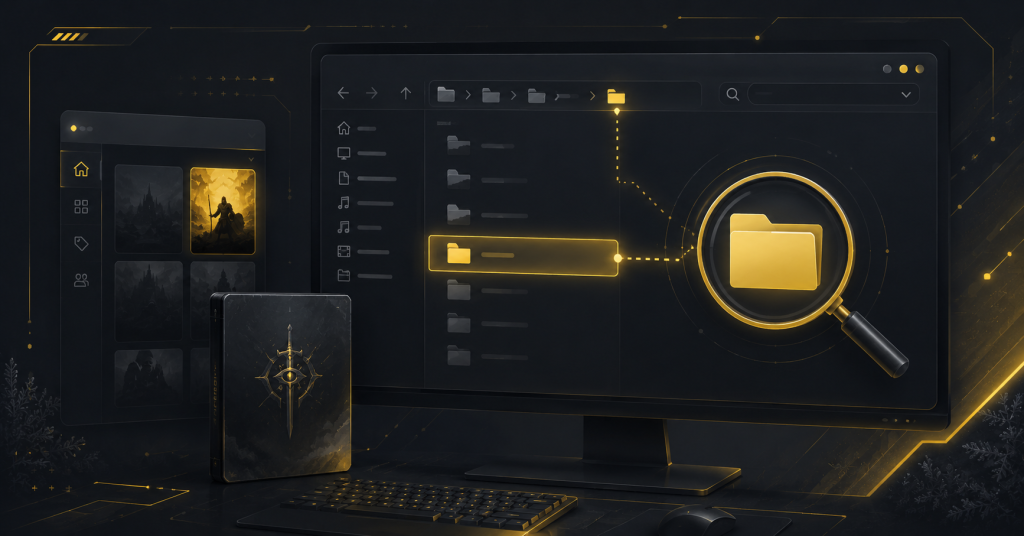
Use the EA App to reveal the actual game directory
Open the EA App, go to Library, and select Dragon Age: Inquisition. Open the Manage menu, choose View Properties, and select Browse to open the game’s installation folder in File Explorer.
Do not assume that the game is installed in the default EA Games folder. The location may be different if you selected another drive, moved the game, or restored an existing installation.
Verify core game executable and file structure
Inside the installation folder, look for DragonAgeInquisition.exe. This is the main executable that you should select when Frosty asks you to locate the game.
Also, confirm that the folder contains the main game data and the installer directory. If the executable or important folders are missing, use the EA App’s repair option before continuing with Frosty setup.
Prepare Frosty and Your System
A clean Frosty installation and an updated Windows system can prevent many launch, detection, and mod-loading errors. Download Frosty from a trusted source and extract it into a simple folder outside protected Windows directories.
Before launching the game, confirm that Frosty can access the installation folder and that required system components are installed. These checks reduce the risk of crashes, missing DLL errors, and blocked mod files.
Download and confirm a compatible Frosty build
Download Frosty Mod Manager from the official Frosty Tool Suite releases page. Avoid unofficial repacks because they may contain modified, outdated, or incomplete files.
Extract the complete archive before opening Frosty. Confirm that the manager starts correctly, detects DragonAgeInquisition.exe, and allows you to import a mod without displaying an error.
Recommended system checks: antivirus exclusions, Windows updates, VC++/.NET
Check Windows Security if Frosty files are being blocked or quarantined. Add an exclusion only for a trusted Frosty folder instead of disabling antivirus protection for the entire system.
Install pending Windows updates, then restart the computer. Also repair or install the supported Microsoft Visual C++ Redistributable and the required .NET runtime from Microsoft’s official download pages.
Configure Frosty to Detect and Launch the Game
Frosty Mod Manager can only apply mods when it is linked to the correct game file and has permission to access the installation folder. A wrong executable path or restricted Windows permissions may cause the game to launch without mods.
Complete the game-path setup first, then adjust permission settings only when Frosty shows access or launch errors.
Point Frosty to DragonAgeInquisition.exe and set working directory
Open Frosty Mod Manager and browse to the Dragon Age: Inquisition installation folder. Select the main DragonAgeInquisition.exe file instead of an EA App shortcut or desktop launcher.
The selected working directory should be the same folder as the game executable. If the game was recently moved or reinstalled, create a fresh Frosty profile so the old directory is not reused.
Set Frosty to run as administrator and adjust compatibility options
Use administrator mode when Frosty cannot create mod files or access the game directory.
- Right-click the Frosty Mod Manager executable.
- Open Properties and select the Compatibility tab.
- Enable Run this program as an administrator.
- Click Apply, then reopen Frosty.
Avoid enabling older Windows compatibility modes unless a specific error requires them. Unnecessary compatibility settings may interfere with the EA App or cause issues on launch.
Methods to Coexist with the EA App Launcher
Frosty and the EA App must work together during the launch process. In most cases, Frosty prepares the modified game files while the EA App confirms ownership and starts Dragon Age: Inquisition.
The best method depends on how the EA App responds when Frosty launches the game. Start with direct launching because it requires fewer changes. Use the temporary launcher-control method only when the EA App repeatedly opens the game without applying mods.
Method A — Launch game executable directly through Frosty
This is the safest method because Frosty manages the mod deployment and starts the selected game executable.
- Open the EA App and sign in.
- Keep the EA App running in the background.
- Start Frosty Mod Manager as administrator.
- Apply the selected mods and click Launch.
- Wait for Frosty to complete its deployment process.
Avoid opening the game separately from the EA App while Frosty is working. Starting it from another shortcut may bypass Frosty and load the original game files instead.
Method B — Temporarily prevent EA App from intercepting launches
When the EA App repeatedly interrupts Frosty, open the EA App first and switch it to offline mode before launching the game through Frosty. EA states that offline mode works only with games that do not require an active internet connection and that have been launched online recently.
This method is temporary because the EA App returns online when it is closed and opened again. Do not delete, rename, or permanently modify EA App program files, as future updates may replace them or cause the launcher to stop working correctly.
After entering offline mode, apply the mods in Frosty and launch the game without using its normal EA App shortcut. If the problem continues, restore online mode and check Frosty’s platform-launch settings instead.
Verify Mods Are Injecting and Test the Game
After configuring Frosty, test the game with a small and simple mod setup. Enabling too many mods at once can make it difficult to identify which file is causing a crash or launch problem.
A successful test should confirm that Frosty completes deployment, the game opens through the EA App, and visible mod changes appear in-game. Save your main playthrough only after confirming that the setup is stable.
Run a safe test: load sequence, check mod list, spot signs of successful injection
Start with one lightweight mod that creates an obvious visual or interface change. In Frosty, confirm that the mod appears in the applied-mods list and is enabled before clicking Launch.
Use this testing sequence:
- Open the EA App and keep it running.
- Start Frosty with the required permissions.
- Apply one trusted mod and click Launch.
- Wait for deployment to finish without closing either program.
- Check the modded feature after reaching the game menu or loading a save.
Successful injection is confirmed when the selected change appears in the game and Frosty shows no deployment error. If the game launches without the change, recheck the applied-mod list, game profile, executable path, and mod compatibility.
Troubleshooting Common Errors
Frosty Mod Manager errors are usually connected to an incorrect game path, limited folder permissions, conflicting mods, or outdated generated files. Identifying the exact stage where the problem appears makes troubleshooting easier.
First confirm whether Frosty detects the game, completes deployment, and launches Dragon Age: Inquisition. Then check whether the applied mods actually appear in the game.
Frosty doesn’t detect the game — path and permissions checklist
When Frosty cannot detect the game, check these basic settings:
- Select the original DragonAgeInquisition.exe file instead of a desktop shortcut.
- Confirm that the game has not been moved to another drive or folder.
- Run Frosty as administrator when the installation folder has restricted permissions.
- Make sure Windows Security has not blocked or quarantined Frosty files.
- Repair the game through the EA App if the executable or data folders are missing.
After correcting the path, restart Frosty and create a new game profile if it continues using the old directory.
Mods appear but changes don’t load — file overwrite and load order fixes
A mod may appear inside Frosty but fail to load when another mod overwrites the same game files. Disable recently added mods and test one clearly visible mod by itself.
If the single mod works, enable the remaining mods one by one to identify the conflict. Place priority mods in the correct load order and remove duplicate versions that modify the same textures, characters, menus, or gameplay files.
You may also need to delete Frosty’s generated mod data and let it rebuild the files on the next launch. Always close Frosty, the game, and the EA App before removing generated files.
Game crashes after injection — conflict isolation and safe-mode steps
A crash after Frosty finishes deployment usually points to an incompatible mod, duplicate file edit, or damaged generated data. Disable every applied mod, then launch the game through Frosty with an empty profile to confirm that the base setup still works.
If the game opens normally, enable one mod at a time and test after each change. Remove outdated mods, avoid mixing multiple mods that edit the same character or gameplay files, and rebuild Frosty’s generated mod data before testing again.
EA App re-verifies or restores files — prevention and recovery steps
The EA App may repair or recheck the installation when it detects missing or changed original files. Keep permanent mod files outside the main game directory and allow Frosty to create temporary modded data instead of manually replacing original files.
When the EA App restores files, let the repair process finish completely. Afterward, confirm that DragonAgeInquisition.exe still exists, reopen Frosty, verify the game path, rebuild the applied-mod profile, and launch the game again. Avoid starting an EA App repair while Frosty or the game is running.
Best Practices for Modding Dragon Age: Inquisition
A stable modded setup depends on careful file management and gradual testing. Installing many mods without checking compatibility can make crashes and missing changes difficult to diagnose.
Keep original game files untouched whenever possible. Use Frosty profiles to organize different setups and maintain copies of important saves before making major changes.
Backups, mod profiles, and incremental testing
Create backups of save files, downloaded mods, and working Frosty profiles. Store these copies outside the game installation folder so they remain safe during repairs or reinstalls.
For better organization:
- Create separate profiles for graphics, gameplay, and character mods.
- Add only one or two new mods at a time.
- Test the game after every major change.
- Remove duplicate mods that edit the same files.
This approach makes it easier to find the exact mod responsible for a crash or conflict.
Keep Frosty and mods updated safely
Do not replace a working Frosty version immediately after every new release. First check whether the updated build still supports Dragon Age: Inquisition and your current EA App setup.
Before updating, save a copy of the existing Frosty folder and mod profile. Read the mod author’s installation notes, remove older versions before adding replacements, and avoid mixing files from different releases.
After each update, test the game with a small mod profile. Once the basic setup works correctly, restore the remaining mods gradually.
FAQs
These frequently asked questions address two common Frosty Mod Manager problems: game detection errors and crashes during mod testing. The answers focus on safe checks that protect the original game files and simplify troubleshooting.
Why doesn’t Frosty detect my Dragon Age: Inquisition installation?
Frosty may fail to detect the game if it is linked to an old folder, a desktop shortcut, or an incorrect executable. Select the original DragonAgeInquisition.exe file inside the actual EA App installation directory.
The problem may also be caused by restricted permissions, antivirus blocking, or missing game files. Run Frosty as an administrator, check the security settings, and repair the game through the EA App if the executable is missing.
How can I safely test mods without crashing the game?
Create a separate Frosty profile and begin with one trusted mod that makes a visible change. Launch the game, confirm that the mod works, and then add the remaining mods one or two at a time.
Back up important save files before testing gameplay modifications. If the game crashes, disable the most recently added mod and check whether it conflicts with another mod that changes the same files.
What steps prevent the EA App from blocking mod injection?
Use the following launch sequence to reduce interference from the EA App:
Open the EA App and sign in before starting Frosty.
Confirm that Dragon Age: Inquisition is fully updated.
Run Frosty with administrator permissions.
Apply the selected mods and launch the game only through Frosty.
Avoid launching the game from the EA App or a desktop shortcut during deployment.
If the EA App becomes stuck, fails to update, or cannot find the game, clear its cache through Help > App Recovery > Clear Cache. Repairing the game may restore missing original files, but Frosty’s generated mod data may need to be rebuilt afterward.
Where can I get help or official support for Frosty issues?
Check the Frosty Tool Suite GitHub repository for project information, releases, known issues, and development updates. The current repository is an early .NET 8 rewrite and also directs users to the older Frosty repository, so make sure the guidance matches the Frosty version you installed.
For EA App problems, use the EA Help pages, EA Forums, or the EA Error Reporter. EA support can help with launcher errors, missing games, cache problems, and file repairs, but Frosty-specific mod conflicts are normally handled through Frosty or modding community resources.
Conclusion
Frosty Mod Manager can work with Dragon Age: Inquisition on the EA App when the correct executable, permissions, runtimes, and launch sequence are used. Most problems can be traced to an incorrect game path, conflicting mods, blocked files, or damaged generated data.
Keep backups, test mods gradually, and avoid manually changing original game files. When an error appears, test the game with an empty Frosty profile first, then restore mods one at a time until the conflicting file is identified.
Latest Post: