Troubleshooting Frosty Mod Manager: Diagnose and Fix Common Problems
Frosty Mod Manager can fail to open, fail to detect a game, launch without applying mods, or cause crashes after deployment. These problems often come from incorrect file paths, missing Windows components, damaged deployment data, launcher conflicts, or incompatible mods.
This guide provides a structured way to identify the cause before reinstalling anything. Start with the quick checks below, then move to more specific fixes based on the exact symptom you experience.
Quick Checklist Before You Begin
Confirm that the original game launches normally without mods. Close Frosty, the game, and the connected launcher before changing folders, clearing deployment data, or editing profiles.
Make only one change at a time and test the result. This prevents several fixes from overlapping and makes it easier to identify what solved or caused the problem.
System and software requirements
Use a Frosty build that supports your game and its current patch. Windows should also have the required .NET Desktop Runtime and Microsoft Visual C++ Redistributables installed.
Before troubleshooting, check that:
- Windows and the game launcher are updated
- Frosty is fully extracted from its compressed archive
- The game executable is in its original installation folder
- Your Windows account can read and write to the Frosty and game folders
- Enough free storage is available for deployment files
Restart Windows after installing or repairing runtime components. This ensures that Frosty can access the updated system files correctly.
Backups, restore points, and safe test profiles
Back up game saves, Frosty profiles, downloaded mod packages, configuration files, and load-order notes. Store the backup outside the game and Frosty folders so it remains safe during repairs or clean reinstalls.
Create a separate Frosty profile for troubleshooting and use a copied save. Start with an empty profile, then apply one known-good mod before adding the rest of your collection.
A Windows restore point can provide additional protection before changing runtimes, permissions, or system settings. It does not replace a manual save backup, but it can help reverse broader Windows configuration changes.
Disable overlays, antivirus, and conflicting tools
Temporarily close programs that can interfere with Frosty’s deployment or the game’s startup. Common examples include launcher overlays, Discord or graphics overlays, monitoring utilities, recording software, and other mod managers.
Review antivirus protection history if Frosty files disappear or deployment is blocked. Restore only trusted files and create narrow exceptions for the Frosty executable or its working folder rather than disabling security protection permanently.
Test the game with these background tools closed. Once Frosty launches reliably, re-enable them individually until the conflicting program is identified.
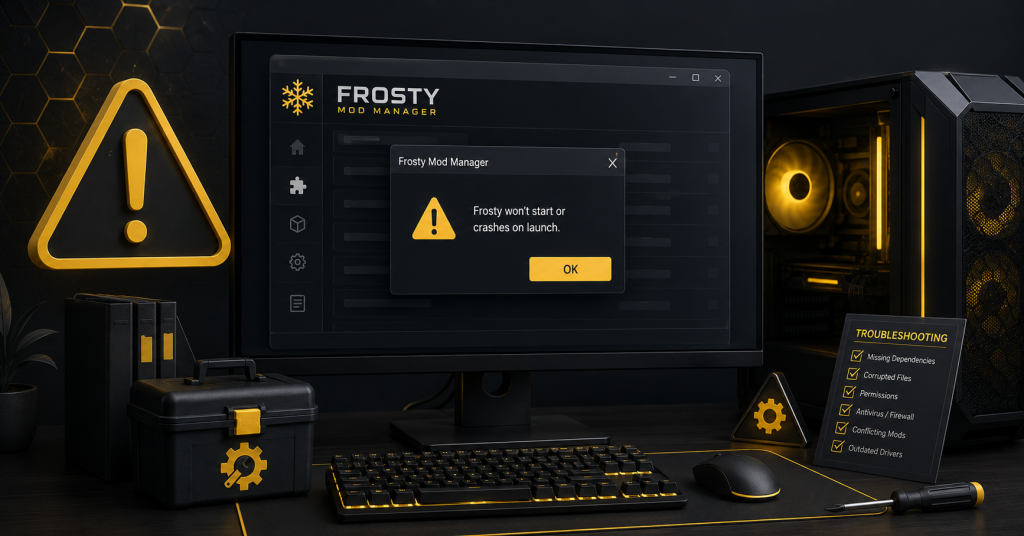
Frosty Won’t Start or Crashes on Launch
When Frosty closes immediately, freezes during startup, or displays a runtime error, the problem is usually in the manager’s environment rather than in the game itself. Check permissions, required Windows components, configuration files, and security software before changing the game installation.
Test Frosty without imported mods or third-party plugins where possible. This helps determine whether the main program is damaged or an added component is causing the crash.
Common symptoms to recognize
Frosty launch problems can appear in several ways. The manager may show briefly in Task Manager and then disappear, remain stuck on its loading screen, or display an unhandled exception before the main interface opens.
Other symptoms include a blank window, missing DLL or runtime messages, crashes while loading a game profile, and failures that begin after moving the Frosty folder or updating Windows. Note exactly when the failure occurs, as this can point to the affected component.
Typical root causes
Common causes include missing or damaged .NET and Visual C++ runtime files, restricted folder access, corrupted Frosty configuration data, and antivirus interference. Running Frosty directly from a compressed archive can also prevent it from loading required files.
An outdated Frosty build, an incompatible plugin, a damaged game profile, or an incorrect executable path may cause the manager to crash while loading a specific game. If Frosty opens after its plugins or profiles are removed, restore those items individually to identify the conflict.
Step-by-step fixes (permissions, compatibility, dependencies)
Try these fixes in order:
- Restart Windows and close the game launcher completely.
- Extract Frosty into a fresh folder such as C:\Frosty.
- Right-click the Frosty executable and select Run as administrator.
- Install or repair the required .NET Desktop Runtime.
- Install or repair the Microsoft Visual C++ Redistributables.
- Temporarily remove third-party Frosty plugins and test again.
- Review antivirus protection history for blocked Frosty files.
- Try compatibility mode only if normal administrator mode fails.
Avoid permanently disabling User Account Control or antivirus protection. Use compatibility settings one at a time so you can identify which change affects Frosty.
Reinstalling the manager safely
Back up downloaded mods, profiles, load-order notes, and configuration details before removing Frosty. Move the existing Frosty folder to a backup location rather than deleting it immediately.
Extract a clean Frosty copy into a new folder and create the game profile again using the correct executable. Test the manager with an empty profile, then import a known-good mod. Restore the rest gradually instead of copying the complete old configuration into the fresh installation.
Mods Not Applying or Changes Not Appearing
When the game launches normally but modded content doesn’t appear, the problem is usually due to compatibility issues, an incorrect game profile, or a conflict between installed mods. Start by testing a simple mod to confirm whether Frosty is applying changes at all.
Always launch the game through Frosty Mod Manager after applying the selected mods. Opening it directly through the EA app, Steam, or a desktop shortcut may start the unmodified version of the game.
Verify mod format and Frosty compatibility
Confirm that the downloaded file is designed for Frosty Mod Manager. Frosty commonly supports mod packages such as .fbmod, while ZIP or RAR archives may need to be extracted before they can be imported.
Check that the mod supports your game version and the Frosty release you are using. Older mods may import successfully but fail to apply any changes after a game update. Re-download the mod if Frosty reports that the package is damaged, unsupported, or missing required data.
Confirm game path, profile, and active mod list
Make sure Frosty is connected to the correct game executable, especially if the game was moved or installed through another launcher. The selected profile must also belong to the same game installation you are trying to modify.
Check the Available Mods and Applied Mods panels carefully. Importing a mod does not activate it automatically; it must be added to the active mod list before launching. Confirm that the correct profile is selected and press Launch through Frosty after applying the changes.
Resolve mod conflicts and load order
Two mods may edit the same texture, character, menu, or gameplay file. In that situation, the mod placed later in the load order may overwrite the earlier one, causing some changes to disappear.
Disable all mods and test one mod by itself. If it works, add the remaining mods back in small groups until the problem returns. Rearrange conflicting mods where appropriate, but remove one of them if they cannot work together. After changing the load order, rebuild the modified files and test the game again.
Game Crashes or Instability After Mods
Crashes that begin after enabling mods usually point to an incompatibility, a missing dependency, an incorrect load order, or an outdated file. The problem may appear at startup, while loading a save, or only when entering a location changed by a mod.
Start with a copied save and a separate Frosty test profile. Avoid testing unstable mods on your main playthrough until the game launches and runs normally across several sessions.
Identifying crash patterns and error messages
Note exactly when the crash happens and what you were doing immediately before it. A crash before the main menu often suggests a deployment or startup conflict, while crashes during loading may involve saves, locations, characters, or gameplay resources.
Record any Frosty error message, Windows Event Viewer entry, black screen, missing texture, or repeated loading failure. Also check whether the problem occurs with every save or only one specific playthrough. These details help narrow the issue before disabling mods.
Isolate faulty mods with binary elimination
Binary elimination is faster than testing a large mod list one file at a time. Divide the enabled mods into two groups, disable one group, and launch the game with the other.
If the crash continues, the faulty mod is likely in the active group. If the game works, focus on the disabled group. Continue dividing the problematic group in half until only one mod or a small conflicting combination remains.
After identifying the suspected mod, test it alone, then with related mods. This confirms whether the file is broken on its own or only conflicts with another modification.
Update, roll back, or replace problematic mods
Check the mod page for a newer release that supports your current game patch and Frosty version. Remove the old package before importing the replacement, then rebuild deployment data and test with a copied save.
When the latest version causes problems, restore the last version that worked with your setup. If no compatible release exists, disable the mod or replace it with an alternative that changes the same feature without editing conflicting resources.
Keep notes about the working version and required load order. This prevents the same unstable update from being added again during future profile changes.
Launch Problems with Steam / Origin / EA App
Frosty may apply mods correctly but fail when Steam, Origin, or the EA app takes control of the launch process. This usually happens because the launchers open in the wrong order, cached platform data is damaged, or another program blocks Frosty’s modified game files.
Close Frosty, the game, and all related launchers completely before troubleshooting. Then reopen them using the same Windows account and permission level.
Recommended platform launch sequence and settings
To install the EA app, open it first and sign in. Then start Frosty Mod Manager, apply the active mod profile, and launch the game through Frosty. For a Steam copy, open both Steam and the EA app before using Frosty because many EA games purchased through Steam still require the EA app to complete authentication.
Avoid launching the game from a desktop shortcut after applying mods. Check that Steam is linked to the correct EA Account and that Frosty is configured for the platform where the game is installed. Origin references generally apply to older setups, as the EA app has replaced Origin as EA’s main launcher.
Clear platform caches and temporary files
A damaged launcher cache can cause blank windows, endless loading, failed authentication, or the game to close immediately. In the EA app, use App Recovery to clear the cache, restart the computer, and sign in again. EA officially recommends this step for games that fail to download, install, or load.
For Steam, open Settings > Downloads > Clear Download Cache. Steam will restart and may require you to sign in again. After clearing the cache, verify the game files before rebuilding Frosty’s ModData folder and testing the launch again.
Handle DRM, permissions, and overlay conflicts
DRM checks may fail when Steam, the EA app, and Frosty are signed in under different accounts or running with different permission levels. Make sure the correct accounts are linked, avoid unlinking them repeatedly, and run the launchers normally before testing Frosty as administrator.
Temporarily disable the Steam overlay, EA in-game overlay, Discord overlay, recording software, and performance-monitoring tools. EA notes that multiple overlays can interfere with the app or game, and its support guidance specifically recommends disabling the EA overlay when a game will not launch.
Frosty Not Detecting Installed Games
Frosty may fail to detect a game when its saved profile points to an old installation, the game was moved to another drive, or the wrong executable was selected. Permissions and unsupported game profiles can produce the same result.
Confirm that the game appears as installed in its launcher and starts normally without Frosty. Then reconnect Frosty to the active installation rather than reusing an outdated profile.
Check installation paths and multiple library locations
Check every drive or library folder used by the EA App, Steam, or another connected platform. Steam supports multiple library locations and allows games to be moved between them, so Frosty may continue pointing to the previous folder after a transfer.
Look for:
- Old game folders remaining on another drive
- Duplicate installations from Steam and the EA App
- Disconnected external drives
- A Frosty profile linked to a removed library
- Restricted access to the current installation folder
When the game is missing from the EA App Library, confirm that you are using the correct account and clear the launcher cache before changing Frosty.
Manually point Frosty to the game executable
Use these steps to reconnect the game:
- Open the platform and locate the current installation directory.
- Browse to the folder containing the game’s main .exe file.
- Open Frosty and create a new game profile.
- Select the original game executable, not a shortcut or launcher file.
- Confirm that Frosty displays the correct game title.
- Test an empty profile before importing mods.
If the game was repaired, reinstalled, or moved, stop using the old Frosty profile. Permission-related installation errors can also prevent tools from accessing game folders, so run Frosty with suitable access when required.
Unsupported editions and platform compatibility notes
Frosty supports selected Frostbite game profiles rather than every game, edition, or executable variant. Support can also differ between Frosty releases, so check the release notes for your exact game before attempting advanced path fixes.
Games purchased through Steam may still require the EA App for ownership verification. In these setups, Frosty must complete a platform handoff, and some builds may launch the game without applying mods. Frosty release notes include Steam launch-plugin fixes, while community tools such as FrostyFix were created for non-Origin platforms.
Avoid forcing an unsupported executable into Frosty. Use a compatible build or game-specific profile instead, and test platform workarounds separately from normal mod-conflict troubleshooting.
Using Logs and Diagnostics
Logs provide a record of what Frosty was doing before an import, patching, or launch failure occurred. Reproduce the issue once, note the time, and inspect the newest entries rather than reading every old warning.
Pay attention to messages containing terms such as Error, Fatal, Exception, Access Denied, or File Not Found. The lines immediately above the final error often reveal the mod, file, or process that caused it.
Locate and interpret Frosty log files
Check Frosty’s installation folder and %LOCALAPPDATA%\Frosty for recently updated .log or .txt files. You should also save the complete error message shown inside Frosty, including any exception details.
Common messages usually point to a specific issue. Permission errors suggest Frosty cannot write to the game folder, while missing-file errors may indicate an incorrect game path. Archive, catalog, or patching errors often relate to damaged game files, incompatible mods, or an outdated ModData folder.
Enable verbose logging and run diagnostics
Some Frosty versions or community builds provide additional logging or diagnostic options. Check the program’s settings, command-line options, or included documentation for a debug or verbose logging feature. Availability and naming can differ between releases.
After enabling detailed logging, restart Frosty and reproduce the problem with a small mod profile. Test the game without mods first, then with one known-working mod. This comparison helps determine whether the failure is due to Frosty, the launcher, or the active mod list.
What to collect when submitting a bug report
A useful bug report should include enough information for another person to reproduce the problem. Collect the following details:
- Frosty Mod Manager and game versions
- Launcher used, such as Steam or the EA app
- Full error message and latest log file
- Active mod list and load order
- Steps that caused the problem
- Troubleshooting methods already attempted
Remove account names, email addresses, usernames, and personal folder details before sharing logs publicly. Avoid sending only a screenshot of the final error when the full text or log file is available.
Reinstalling, Resetting, and Safe Recovery
A clean reset is useful when Frosty continues to crash, keeps loading corrupted settings, or fails even with an empty profile. Before removing anything, back up saves, mod packages, profiles, configuration notes, and the current load order.
Reinstall one component at a time. This makes it easier to confirm whether the problem came from Frosty, a Windows dependency, the game installation, or an imported mod.
Clean uninstall and remove residual files
Close Frosty, the game, and every connected launcher. Move the existing Frosty folder to a backup location, then remove or rename generated deployment data such as ModData.
Check Frosty-related configuration folders only when a normal reinstall keeps restoring the same broken profile or setting. Avoid deleting game saves or launcher-managed installation folders. Extract the fresh Frosty build into a new, simple directory rather than copying it over the old files.
Restore from backups and reapply mods safely
Start the fresh Frosty installation with an empty profile and confirm that the game launches normally. Next, apply one trusted mod with an obvious in-game change and test it using a copied save.
Restore the remaining mods gradually instead of importing the complete collection at once. Recreate the load order from your notes, confirm dependencies, and stop when a crash or missing feature returns. This helps identify damaged or incompatible files before they affect the full setup.
Reinstall dependencies and verify a clean baseline
Repair or reinstall the .NET Desktop Runtime and Microsoft Visual C++ Redistributables required by your Frosty build. Restart Windows afterward so the updated runtime files load correctly.
Finally, repair or verify the game through its platform and launch it once without Frosty. A clean baseline is confirmed when the original game works, Frosty opens normally, an empty profile launches, and one known-good mod applies successfully.
Best Practices to Avoid Future Problems
A stable Frosty setup depends on controlling updates, testing new mods carefully, and keeping reliable backups. Avoid changing Frosty, the game, and several mods at the same time because this makes it difficult to identify the cause of a new problem.
Keep one known-working setup available whenever possible. This gives you a safe version to return to if an update causes crashes, missing modifications, or launcher errors.
Version control for Frosty and mods
Record the Frosty version, game version, and mod versions used in each working profile. Avoid replacing older files immediately after downloading an update. Store them in clearly named folders so you can restore the previous setup if the new release is incompatible.
Check mod compatibility notes before updating. A newer mod version may require a different Frosty build or game patch. Update one important component at a time, test the game, and continue only when everything works correctly.
Test mods in a disposable profile first
Create a separate Frosty profile for testing newly downloaded or updated mods. Keep this profile small and avoid using important saves until you confirm that the game launches and the expected changes appear.
Test one mod on its own before combining it with your main load order. Then add other mods gradually. If a crash or missing feature appears, the smaller test profile makes it easier to identify the incompatible file.
Regular backup routine and documentation of changes
Back up your save files, Frosty profiles, mod packages, configuration files, and working load order before major changes. Keep at least one backup outside the game installation folder so it remains safe if the game is repaired or reinstalled.
Maintain a simple change log containing the date, updated files, removed mods, load-order adjustments, and test results. This record helps you reverse recent changes instead of rebuilding the entire setup when a problem occurs.
FAQs
Why won’t Frosty launch my game?
Frosty may fail to launch a game because it points to the wrong executable, cannot create deployment files, or encounters a platform handoff problem. Missing runtimes, damaged ModData, outdated profiles, and incompatible mods can cause similar errors.
First confirm that the unmodified game launches through its normal platform. Then check the executable path, rebuild ModData, and test Frosty with an empty profile. For EA App games, repairing the installation and clearing the launcher cache can resolve damaged files or loading problems.
How can I isolate problematic mods causing crashes?
Disable every mod and confirm that the game works through Frosty with an empty profile. Enable half of the mod list and test again. Depending on the result, continue dividing the problematic group until only one mod or a small conflicting combination remains.
Test the suspected mod alone, then combine it with related mods to confirm the conflict. Check its required game patch, dependencies, load-order instructions, and Frosty compatibility before updating or removing it.
What is the safest workflow for applying multiple mods?
Create separate stable and testing profiles, and use a copied save while experimenting. Apply one mod first, check the feature it changes, and add another only after the game remains stable.
Keep a changelog containing each mod’s version, source, dependencies, and load-order position. Back up saves before major profile changes, and retain the original mod archives so a damaged or outdated package can be replaced easily.
Where can I get official or community support for Frosty?
Check the GitHub repository and release page associated with your installed Frosty build. Release notes document fixes for crashes, mod application, game profiles, and other version-specific issues, making them the best place to check whether a problem is already known.
The newer FrostyToolsuite repository is an early .NET 8 rewrite and directs users to the older repository for the established toolset. For game-specific mod conflicts, use the support page provided by the mod author or the relevant modding community. EA App account, cache, repair, and launcher errors should be reported through EA Help.
Conclusion
Most Frosty Mod Manager problems can be traced to incorrect paths, damaged deployment data, missing dependencies, launcher interference, or incompatible mods. Begin with the original game, an empty Frosty profile, and one known-good mod before attempting a full reinstall.
A safe workflow includes regular save backups, separate testing profiles, gradual mod installation, and clear version notes. These habits make crashes easier to diagnose and allow you to return quickly to the last stable configuration.
Latest Post: