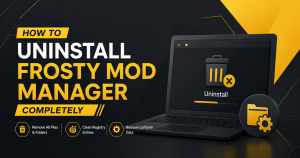
Uninstalling Frosty Mod Manager completely involves more than simply deleting the application. To remove it safely, you should disable any active mods, restore the original game files if necessary, delete the Frosty Mod Manager folder, and remove any leftover configuration files or cache to prevent future conflicts.
This guide explains how to completely uninstall Frosty Mod Manager on Windows, with step-by-step instructions for removing leftover files, preserving your game installation, and resolving any issues that may occur when reinstalling the software later.
Things to do before uninstalling Frosty Mod Manager
Before removing Frosty Mod Manager, spend a few minutes checking your mods and game files. This helps avoid missing data and ensures your game can launch normally after the uninstall.
Back up your mods, profiles, and game files
If you plan to use Frosty Mod Manager again, create backups of your downloaded mods, profiles, and any custom configurations. Saving these files allows you to restore your setup without re-downloading everything.
It’s also a good idea to back up important game saves if your game stores data locally.
Close Frosty Mod Manager and the game launcher
Before uninstalling, completely close Frosty Mod Manager and any game launchers such as EA App, Steam, or Epic Games Launcher.
Also check the Windows Task Manager to confirm that no Frosty-related processes are still running. This prevents file conflicts during the removal process.
Check your game installation and ModData location
Frosty Mod Manager often creates a ModData folder inside the game’s installation directory. Review this folder before uninstalling to determine whether it should be removed after restoring the game.
If you are unsure whether the game files have been modified, verifying the game installation through your launcher after uninstalling Frosty can help restore any missing or changed files.
Standard method to uninstall Frosty Mod Manager
If you installed Frosty Mod Manager manually, removing it is usually straightforward. After closing the application, delete its files and clean up any remaining shortcuts or folders.
Remove Frosty Mod Manager from your PC
If Frosty Mod Manager appears in Apps & Features or Installed Apps, uninstall it from there. If it was downloaded as a standalone application, simply close it and then remove its files.
If the program does not include an uninstall option, deleting its installation folder is generally sufficient because Frosty Mod Manager is often distributed as a portable application.
Delete the Frosty Mod Manager installation folder
Open the folder where Frosty Mod Manager was installed and delete the application files. If you no longer need Frosty, you can also remove any leftover configuration files stored in the same directory.
Before deleting anything, confirm that you have already backed up your mods and profiles if you intend to use them again.
Remove desktop shortcuts and related files
After deleting the program files, remove any desktop or Start Menu shortcuts that point to Frosty Mod Manager. You should also check for any empty folders left behind after the uninstall process.
Cleaning up these remaining items helps keep your system organized and prevents broken shortcuts from appearing in Windows.
Remove Frosty Mod Manager data completely
Even after uninstalling Frosty Mod Manager, some files may remain on your computer. Removing these leftover files helps free up space and ensures a clean system if you plan to reinstall Frosty later.
Delete ModData and temporary files
The ModData folder is usually created inside your game’s installation directory when Frosty applies mods. If you no longer plan to use Frosty, you can safely delete this folder after restoring your game.
Also check for temporary files that may have been created during mod installation or testing. Removing these files helps prevent conflicts with future game launches.
Remove configuration, cache, and log files
Frosty Mod Manager may store configuration files, cache data, and log files in its installation or user data folders. These files are not required once the application has been removed.
Deleting leftover configuration and cache files ensures that no outdated settings remain if you install a newer version later.
Delete saved profiles and mod lists
If you no longer need your custom setups, remove saved profiles, imported mod lists, and other Frosty project files. These files are only useful if you plan to restore your previous mod configuration.
If you may reinstall Frosty in the future, consider backing them up before deleting them permanently.
Remove Frosty Mod Manager from supported games
After uninstalling Frosty, you should also make sure your games no longer contain modified files or supporting tools. This helps restore the original game state and prevents launch issues.
Restore original game files if required
If Frosty modified your game during mod installation, restore the original game files before playing without mods. Removing leftover mod files helps prevent crashes or loading problems.
For games that still behave unexpectedly after removing Frosty, restoring the original files is recommended before troubleshooting further.
Verify and repair game files through EA App or Steam
Most supported launchers include a repair feature that checks game files and replaces any missing or modified content.
Use the Verify or Repair option in your game launcher after removing Frosty. This ensures the game installation is complete and restores any files modified by mods.
Remove Frosty Fix or other related tools if installed
If you installed additional tools such as Frosty Fix or other Frosty-related utilities, uninstall or delete them as well if they are no longer needed.
Removing these companion tools helps avoid conflicts with future game updates or different mod managers and completes the cleanup process.
Clean up leftover files and registry entries
After uninstalling Frosty Mod Manager, a few leftover files may still remain on your system. Removing them helps complete the uninstall process and avoids conflicts with future installations.
Find and remove leftover folders
Check the common locations where Frosty Mod Manager stores its files. You may find leftover folders in:
- The original Frosty Mod Manager installation directory.
- The game installation folder (such as ModData if it still exists).
- User folders that contain Frosty configuration or profile data.
Delete only the folders that are clearly related to Frosty Mod Manager. If you’re unsure about a folder, back it up before removing it.
Remove registry entries safely (optional)
Most users do not need to edit the Windows Registry after uninstalling Frosty Mod Manager. If you choose to remove leftover registry entries, create a registry backup first.
Only delete entries that are clearly associated with Frosty Mod Manager. Removing unrelated registry keys can cause problems with Windows or other applications.
Reinstall Frosty Mod Manager (Optional)
If you removed Frosty because of errors or outdated files, installing the latest version can often resolve those issues. A clean installation also reduces the chance of configuration conflicts.
Download the latest version
Download the newest release of Frosty Mod Manager from its official source. Using the latest version helps ensure compatibility with recent game updates and bug fixes.
Install Frosty Mod Manager correctly
Extract or install Frosty Mod Manager in a dedicated folder with appropriate permissions. Before launching it, confirm that your game installation is clean and has been verified through your launcher if necessary.
Import mods and rebuild your mod profile
After reinstalling, import your backed-up mods and recreate your mod profile. To avoid loading problems:
- Import mods one at a time if you are troubleshooting.
- Enable only compatible mods for your game version.
- Test the game before adding additional mods.
Rebuilding your profile gradually makes it easier to identify any problematic mods if issues return.
Troubleshooting uninstall problems
Most Frosty Mod Manager uninstall issues are caused by running processes, locked files, or leftover game modifications. Checking these common problems can help ensure the removal is successful.
Frosty Mod Manager won’t uninstall
If Frosty Mod Manager will not uninstall, first make sure the application and your game launcher are completely closed. You may also need to restart your computer before trying again.
If Frosty was installed as a portable application, manually deleting its installation folder is usually enough to remove it.
ModData or files cannot be deleted
Files inside the ModData folder may remain locked if the game or another program is still using them. Close all related applications and try deleting the folder again.
If the problem continues, restart Windows and remove the folder before launching the game or Frosty Mod Manager again.
Game still launches with Frosty changes
If your game still behaves as though Frosty is installed, verify or repair the game files through your launcher. This restores modified files and removes remaining changes made by installed mods.
Also check that the ModData folder and any Frosty-related tools have been removed from the game directory.
Frequently Asked Questions
Does uninstalling Frosty Mod Manager remove my mods?
No. Uninstalling Frosty Mod Manager usually removes the application itself but does not automatically delete your downloaded mod files or saved profiles. You can keep them as a backup or remove them manually if they are no longer needed.
Can I reinstall Frosty Mod Manager later?
Yes. You can reinstall Frosty Mod Manager at any time by downloading the latest version and importing your saved mods and profiles if you backed them up before uninstalling.
Is it safe to delete the ModData folder?
Yes, in most cases, it is safe to delete the ModData folder after uninstalling Frosty Mod Manager and restoring your game. This folder mainly contains files generated for modded gameplay.
Do I need to verify game files after uninstalling?
It is recommended, especially if you used mods that modified game files. Running the Verify or Repair option through the EA App or Steam helps restore the original game files and ensures the game launches correctly.
Conclusion
Uninstalling Frosty Mod Manager is straightforward: remove the application, clean up leftover files, and restore your game if necessary. Taking a few extra steps, such as deleting the ModData folder and verifying game files, helps prevent future launch or modding issues.
If you decide to use Frosty again, keeping backups of your mods and profiles will make reinstalling and rebuilding your setup much easier.
Latest Post: