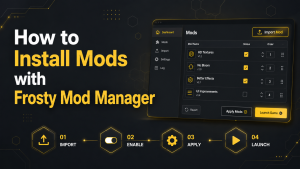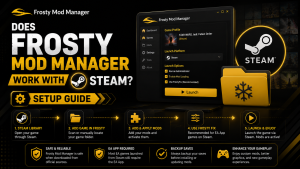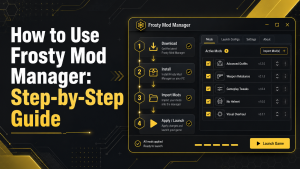
Frosty Mod Manager makes it easy to install, organize, and manage mods for supported Frostbite engine games. After installing the software, you’ll need to select your game, import compatible mods, arrange their load order if necessary, and launch the game through Frosty Mod Manager for the changes to take effect.
This step-by-step guide walks you through setting up Frosty Mod Manager, adding and enabling mods, launching your game, and troubleshooting common issues. Whether you’re a beginner or an experienced modder, you’ll learn how to use Frosty Mod Manager safely and efficiently for the best gaming experience.
Preparing to Use Frosty Mod Manager
Before using Frosty Mod Manager, confirm that your game is supported and fully up to date. You should also download mods from trusted sources and check that they match your game version.
Create a separate folder for Frosty Mod Manager and keep a backup of important game files. Close the game and its launcher before starting the setup process.
Check Game Compatibility
Before adding mods, confirm that Frosty Mod Manager can detect your game and create a supported profile. Compatibility levels may differ. For example, Frosty Toolsuite 1.0.6.3 added full support for Battlefield V but only a read-only profile for Star Wars: Squadrons.
As of July 2026, version 1.0.6.3 remains the recommended stable release. The newer Frosty rewrite is still under development and has not yet been publicly released. Game updates may also affect older mods, so check each mod’s supported game version before applying it.
How to Install Frosty Mod Manager
Frosty Mod Manager does not require a complex installation process. You only need to download the correct ZIP file, extract it, and open the program from the extracted folder.
Keep all program files in the same folder. Moving or deleting individual files may prevent the manager from working correctly.
Download and Extract Frosty Mod Manager
Follow these steps to prepare the program:
- Open the official Frosty Toolsuite release page.
- Download the FrostyModManager ZIP file.
- Create a separate folder for Frosty Mod Manager.
- Extract all files from the ZIP archive into that folder.
- Do not run the program directly from the compressed file.
After extraction, open the folder and locate FrostyModManager.exe.
Run Frosty Mod Manager as Administrator
Right-click FrostyModManager.exe and select Run as administrator. This permission allows the manager to access game folders and create the files required to apply mods.
When Frosty opens for the first time, select your game executable file. The manager will then create a game profile and prepare the game for mod installation.
How to Add a Game to Frosty Mod Manager
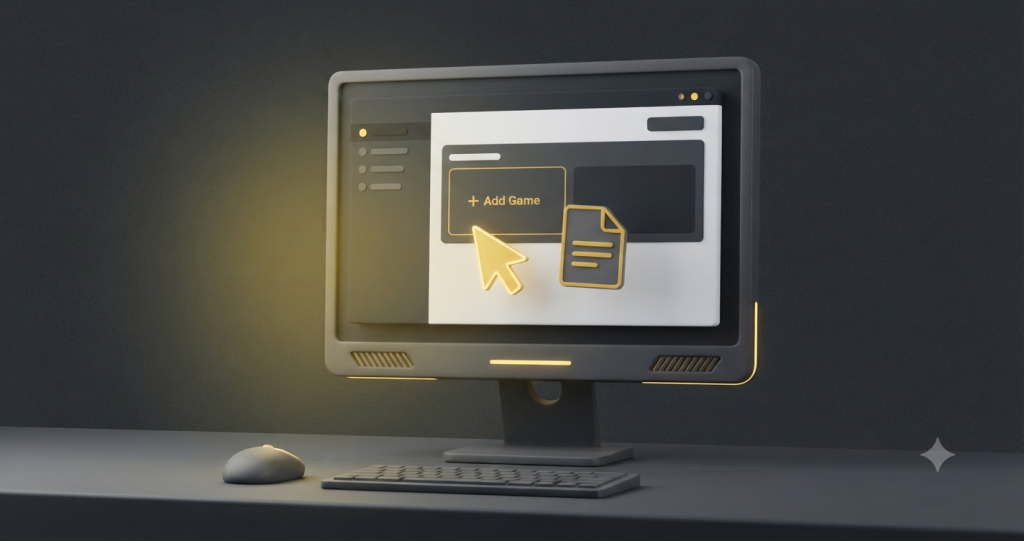
Frosty Mod Manager needs the correct game profile before it can install or apply mods. You must connect the manager to the main executable file of the supported game.
Make sure the game is already installed and has been opened at least once. This helps Frosty correctly detect the required game files.
Locate the Game Installation Folder
The installation folder depends on the launcher used to install the game. You can usually find it through the EA App, Steam, or Epic Games launcher.
Follow these steps:
- Open your game launcher.
- Select the installed game.
- Open the game properties or the settings menu.
- Choose the option to browse local files or open the installation folder.
- Note the folder location for the next step.
Select the Game Executable File
Open Frosty Mod Manager and click New or Scan for Games. Browse to the game installation folder and select the main executable file.
The executable file normally ends with .exe and often uses the game name. After selecting it, Frosty will create a game profile and display it in the manager.
How to Import and Apply Mods
After adding the game profile, you can import compatible mod files into Frosty Mod Manager. Make sure each mod supports your game version and comes from a trusted source.
Keep the downloaded mod files in a separate folder for easy finding and management.
Import Compatible Mod Files
Follow these steps to add a mod:
- Open Frosty Mod Manager.
- Select the correct game profile.
- Click Import Mod or Add Mods.
- Choose the compatible mod file from your computer.
- Wait for the mod to appear in the available mods list.
Frosty commonly supports files such as .fbmod and compatible mod archives.
Move Mods to the Applied Mods List
Select the imported mod from the available mods section. Click Apply Mod or double-click the mod to move it into the applied mods list.
Check that the mod appears in the active list before launching the game. When using multiple mods, arrange them carefully to minimize conflicts.
How to Manage Mod Load Order
Mod load order determines which mod takes priority when multiple mods modify the same game files. A correct order can prevent missing features, visual errors, and game crashes.
Review the instructions provided by each mod creator before changing the order. Some mods must load before or after specific files.
Arrange Mod Priority
Use the up and down controls in the applied mods list to change priority. Place important compatibility patches and required files in the position recommended by the mod developer.
Keep related mods together and avoid changing their order unless there’s a clear reason.
Check for Mod Conflicts
Mod conflicts occur when two or more mods edit the same game content. Common signs include crashes, missing textures, incorrect menus, or missing features.
Disable the suspected mods one at a time and launch the game again. Once you identify the conflicting mod, change its priority, update it, or remove it from the list of applied mods.
How to Launch a Modded Game
After applying the required mods, review the active mods list and confirm that the load order is correct. Close the game and its launcher before starting the modded session.
Follow these steps:
- Open Frosty Mod Manager as an administrator.
- Select the correct game profile.
- Check that all required mods are applied.
- Click Launch or Launch Game.
- Allow Frosty to prepare the modified game files.
- Wait for the game launcher and game to open.
Launch the game through Frosty Mod Manager whenever you want to use the applied mods. Opening the game normally may start it without the selected modifications.
How to Disable or Remove Mods
You can disable a mod without deleting its original file. This is useful when testing conflicts or temporarily returning to the standard game.
To disable or remove a mod:
- Open the applied mods list.
- Select the mod you want to disable.
- Click Remove Mod or move it back to the available mods list.
- Delete the mod from Frosty only when you no longer need it.
- Launch the game again to confirm the change.
Disable mods one at a time when troubleshooting. This makes it easier to identify which file is causing the problem.
Common Frosty Mod Manager Problems and Fixes
Frosty Mod Manager may sometimes fail because of permission issues, incorrect game paths, launcher problems, or incompatible mods. Basic troubleshooting can usually identify and fix the cause.
Game Does Not Launch
Problem: The game may not start if Frosty Mod Manager lacks administrator permission, the wrong executable file is selected, or a mod conflicts with the game.
Fix: Run Frosty Mod Manager as an administrator and confirm that the correct game profile is selected. Open the EA App, Steam, or Epic Games launcher before clicking Launch Game.
If the problem continues, disable recently added mods one at a time. You can also repair the game files through the launcher and restart Frosty Mod Manager.
Applied Mods Do Not Appear
Problem: Applied mods may not appear in the game if they are disabled, placed in the wrong load order, or incompatible with the current game version.
Fix: Confirm that the mods are listed in the applied mods section. Check their load order and make sure each mod supports your game version.
Remove and import the mod again if necessary. You should also launch the game through Frosty Mod Manager instead of opening it directly.
Frosty cannot detect the Game
Problem: Frosty may fail to detect the game when the installation folder is incorrect or the main executable file cannot be found.
Fix: Open the game launcher and locate the installation folder. In Frosty Mod Manager, add a new game profile and select the correct .exe file.
Make sure the game is fully installed and has been launched at least once. Running Frosty as an administrator may also help it access the game folder.
Frequently Asked Questions About Using Frosty Mod Manager
Frosty Mod Manager is easy to use after the initial setup, but new users may still face questions about compatibility, launching, and mod files. The following answers explain the most common concerns in a simple way.
Is Frosty Mod Manager free to use?
Yes, Frosty Mod Manager is free to download and use. It is a community-developed tool created for managing mods in supported Frostbite games.
Users do not need to purchase a license or subscription. However, the original game and any required downloadable content must be purchased separately.
Do I need to launch the game through Frosty?
Yes, users should normally launch the game through Frosty Mod Manager to ensure the applied mods work. Frosty prepares the modified files before opening the game.
If the game is launched directly from the EA App, Steam, or Epic Games, the selected mods may not appear.
What mod files does Frosty Mod Manager support?
Frosty Mod Manager mainly supports mod files created for the Frostbite engine. The most common file format is .fbmod, although some versions may also import compatible ZIP archives.
Users should always read the mod description before importing a file. A mod created for one game or game version may not work with another.
Why are my mods not working?
Mods may not work when they are disabled, outdated, incompatible, or placed in the wrong load order. Game updates can also affect older mods.
Check that the mod is listed in the applied mods section and supports the current game version. You can also reimport the mod, adjust its priority, or disable conflicting files.
Conclusion
Frosty Mod Manager provides a practical way to install, organize, enable, and remove mods in supported Frostbite games. It allows users to manage multiple mods from a single interface and control which mod takes priority.
To successfully mod, users should download Frosty from a trusted source and choose mods compatible with their game version. They should also review the load order and test new mods one at a time.
Proper setup can reduce crashes, missing content, and compatibility problems. By following the correct installation and troubleshooting steps, users can create a more stable and enjoyable modded gaming experience.
Latest Post: