Frosty Mod Manager: Complete Guide to Download, Install, and Use
Quick Answer: Frosty Mod Manager for Windows 11 lets you install, organize, and manage mods for supported Frostbite engine games with ease. After installing the latest version, configure your game path, import your mods, and launch the game through Frosty Mod Manager to apply them. If you experience issues such as the manager not opening, mods not loading, or games failing to launch, updating Frosty Mod Manager, running it as an administrator, verifying game files, and checking Windows 11 compatibility settings usually resolve the problem. This guide covers the complete installation, setup, and troubleshooting process for Frosty Mod Manager for Windows 11.
Frosty Mod Manager is a popular tool that allows players to install, manage, and organize mods for games built on the Frostbite engine. It simplifies the modding process by providing an easy way to add custom modifications without manually changing original game files.
This complete guide explains what Frosty Mod Manager does, how it works, and the basic steps required to download, install, and use it safely. It also covers important settings and best practices for maintaining a stable modded game setup.
What Frosty Mod Manager Is
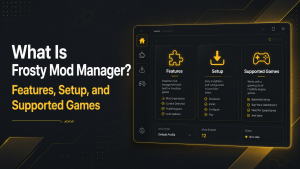
Frosty Mod Manager is a game modification management tool created for Frostbite engine games. It allows users to load custom mods, apply changes, and launch games with modified content through a dedicated interface.
Instead of manually replacing game files, Frosty Mod Manager creates a controlled mod-loading environment. This makes it easier to enable or disable mods, test different combinations, and maintain separate mod profiles.
The tool supports various types of modifications, including visual improvements, gameplay changes, custom textures, and other community-created content. However, compatibility depends on the specific game version and the mod being used.
Frosty Mod Manager is designed for users who want a simple, organized way to manage Frostbite game mods while reducing the risk of damaging original game files.
How Frosty Mod Manager works: mod injection, asset replacement, and load order
Frosty Mod Manager works by loading selected mods into the game at startup rather than directly modifying the original game files. It uses a mod injection process that applies custom modifications at game launch.
The tool can replace existing game assets with modified versions, including textures, models, sounds, and gameplay elements. This allows players to customize their gaming experience while keeping the original installation files mostly unchanged.
Load order is another important part of Frosty Mod Manager. It controls the order in which multiple mods are loaded, helping prevent conflicts between them. Properly arranging mods ensures that required files load correctly and reduces crashes or unexpected behavior.
Who should use Frosty Mod Manager and common use cases
Frosty Mod Manager is useful for players who want to customize supported Frostbite engine games with community-created mods. It is suitable for beginners who need a simple way to install mods and advanced users who manage larger mod collections.
Common use cases include improving game visuals, adding custom characters, changing gameplay features, and testing different mod combinations. Players can also use it to organize multiple mod setups through profiles and switch between different configurations easily.
Before using Frosty Mod Manager, users should confirm that their game supports modding and that the selected mods match the game version. Using trusted mod sources and maintaining backups helps create a safer and more stable modding experience.
Compatible Games and Supported File Types
Frosty Mod Manager is designed mainly for games built on the Frostbite engine. Compatibility depends on the game version, available mod support, and whether the required Frostbite features are accessible. Before installing mods, users should confirm that their game is supported and that the selected modifications match the current game version.
Using compatible games and correct mod formats helps prevent crashes, failed launches, and loading issues. Checking compatibility before installation saves time and reduces problems during the modding process.
Supported games and checking compatibility
Frosty Mod Manager supports many Frostbite-based games from different genres, including action, sports, and multiplayer titles. However, not every Frostbite game supports the same level of modding because some games have additional protection systems or limited community support.
Before adding mods, check the following points:
- Confirm that the game uses the Frostbite engine.
- Check whether the game version matches the mod requirements.
- Review mod descriptions for required tools or dependencies.
- Make sure the mod is designed for the specific game edition or platform.
Testing compatibility with a backup profile is recommended, especially when using multiple mods together.
Common mod formats handled by Frosty
Frosty Mod Manager Not Launching works with mod files created specifically for Frostbite games. These files contain the changes required for the manager to apply custom content during game startup.
Common formats and file types include:
- .fbmod files: The primary Frosty mod format that contains packaged modifications created with Frosty tools.
- .archive files: Used for storing modified game assets and resources that replace original content.
- Texture and asset files: These include changes to visuals, models, and other in-game elements.
Using the correct mod format ensures that Frosty can read and apply the modification properly. Always download mods from trusted sources and follow the creator’s installation instructions.
Key Features and Core Capabilities
Frosty Mod Manager provides several features that make managing game modifications easier and more organized. Instead of manually replacing files, users can install, arrange, and control mods through a single interface.
The tool focuses on safe mod management by keeping original game files separate from modifications. Features such as profiles, load order control, and diagnostic tools help users create stable mod setups and troubleshoot problems when they occur.
Mod profiles, load order, and activation controls
Mod profiles allow users to create separate configurations for different mod collections. Players can maintain one profile for visual changes, another for gameplay modifications, or a clean profile for testing new mods.
Load order management controls which mods are applied first when the game starts. This is important because some modifications may overwrite or depend on other files. Correct ordering helps reduce conflicts and ensures that mods work as intended.
Activation controls allow users to enable or disable individual mods without removing them entirely. This makes testing easier and allows quick switching between different mod setups.
Asset management, plugins, and diagnostics
Frosty Mod Manager helps manage modified game assets such as textures, models, and other resources. It organizes these files so that the game can load custom content properly while keeping the original installation protected.
Plugins can extend Frosty’s functionality by adding support for additional features or improving compatibility with specific games. These extensions can help users handle more complex modding tasks.
Diagnostic features help identify issues such as missing files, incompatible mods, or incorrect configurations. Checking logs and error information can help users find the cause of mod failures and apply the correct solution.
System Requirements and Pre-Installation Setup
Before installing Frosty Mod Manager, users should prepare their system and game files to ensure a smooth modding experience. Proper setup helps prevent installation errors, compatibility problems, and issues caused by missing software components.
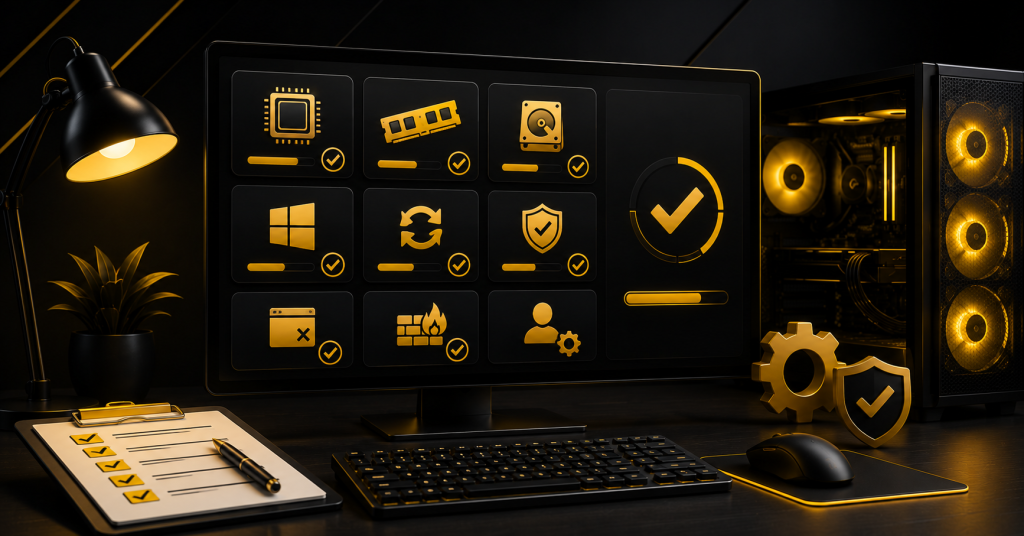
Checking system requirements, updating necessary software, and creating backups before applying mods are important steps. A prepared setup makes it easier to troubleshoot problems and restore the game if something goes wrong.
Required software and supported operating systems
Frosty Mod Manager is mainly designed for Windows-based gaming systems. Before installation, users should make sure their system has the required environment to run the tool properly.
Important requirements include:
- A supported Windows operating system with updated system components.
- The latest graphics drivers for better game compatibility.
- Required Microsoft runtime components if requested by the tool or game.
- A supported Frostbite engine game installed on the system.
Keeping the operating system and required software updated helps avoid errors during mod installation and game launching.
Backing up game files before modding
Creating a backup before installing mods is an important safety step. Although Frosty Mod Manager usually avoids permanently changing original files, backups provide a reliable way to restore the game if conflicts or errors occur.
Before applying mods, users should consider backing up:
- Original game files and installation folders.
- Save files and important game settings.
- Existing mod profiles and configurations.
A proper backup allows users to remove problematic mods, perform clean reinstalls, or return to the original game state without losing important data.
Download Frosty Mod Manager
Downloading Frosty Mod Manager from a reliable source is the first step toward creating a stable modding setup. Users should avoid unknown websites because modified or outdated versions may contain missing files, compatibility problems, or unnecessary risks.
Before downloading, check the latest available release information and confirm that the version supports your game and system setup. Keeping the tool updated helps maintain compatibility with newer game versions and community-created mods.
Choosing the correct version and verifying downloads
Selecting the correct Frosty Mod Manager version is important because different releases may support different games, features, or fixes. Always review the version details and choose the release recommended for your specific game.
After downloading the tool, verify the files before installation. Important checks include:
- Confirm that the download comes from a trusted source.
- Check that the file size matches the expected release.
- Scan the downloaded archive with security software.
- Make sure all required files are included after extraction.
Verifying downloads helps prevent installation problems and ensures that Frosty Mod Manager works correctly with your mod setup.
Install and Configure Frosty Mod Manager
Installing and configuring Frosty Mod Manager correctly is important for ensuring that mods load properly and the game remains stable. A proper setup helps the tool detect installed games, manage mod files, and apply modifications without unnecessary errors.
Before starting the installation, make sure the game is already installed and that all required system components are available. Keeping Frosty Mod Manager in a separate folder also makes future updates and troubleshooting easier.
Installation steps and initial configuration
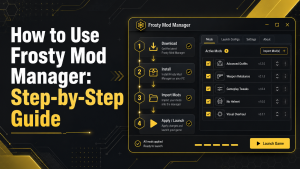
Follow these steps to install and configure Frosty Mod Manager:
- Extract the downloaded Frosty Mod Manager files to a dedicated folder on your computer.
- Open the application and allow any required permissions if prompted.
- Select the supported game installation path when Frosty detects or asks for the game location.
- Create a mod profile or prepare the default configuration for managing mods.
- Check the settings and confirm that the tool recognizes the game correctly.
After the initial setup, test the manager by adding a small mod before installing multiple modifications. This helps confirm that Frosty is working correctly and makes it easier to identify problems if errors appear later.
First-Time Setup and Mod Management
After installing Frosty Mod Manager, the first-time setup process helps the tool identify your games and prepare a proper environment for installing mods. Correct configuration at this stage makes future mod management easier and reduces problems related to incorrect file locations.
A proper setup includes adding supported games, confirming installation paths, and creating profiles for different mod collections. These settings allow users to organize their modifications and switch between different setups when needed.
Adding games, setting paths, and creating profiles
The first step in Frosty Mod Manager is adding the supported game that you want to modify. The manager needs the correct game installation path so it can locate required files and apply mods properly.
After selecting the game, users can create profiles to manage different mod configurations. Profiles are useful when testing new mods, keeping separate gameplay setups, or maintaining a clean configuration without removing installed modifications.
Keeping game paths accurate and profiles organized helps prevent loading errors and makes it easier to manage multiple mods. A well-structured setup also allows users to quickly identify problems when a specific mod causes conflicts.
Installing and Applying Mods
Installing and applying mods through Frosty Mod Manager on Linux users to customize supported games without manually editing original game files. The process involves importing mod files, arranging them correctly, and applying changes before launching the game.
A careful installation approach helps prevent conflicts between multiple modifications. Testing mods individually before adding many changes at once makes it easier to identify errors and maintain a stable setup.
Importing mods, managing load order, and testing changes
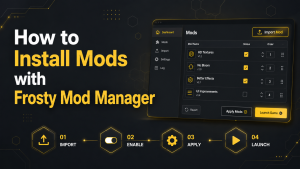
To install a mod, users first need to import the mod file into Frosty Mod Manager. After importing, the mod appears in the available mod list, where it can be selected and prepared for activation.
Managing load order is important when using multiple mods because some modifications may overwrite or depend on others. Placing mods in the correct sequence ensures that required files load properly and reduces compatibility issues.
Before applying several changes together, it is recommended to test mods one at a time. Users should check whether the game launches correctly, confirm that the modification works as expected, and adjust the load order if conflicts appear.
Important steps include:
- Import the required mod files into Frosty Mod Manager.
- Arrange mods according to compatibility requirements.
- Apply changes and launch the game through Frosty.
- Test new modifications before adding more mods.
This method helps create a more reliable modding setup and makes troubleshooting easier when problems occur.
Troubleshooting Common Issues
Frosty Mod Manager can sometimes cause issues such as crashes, mod conflicts, or failed launches. These problems usually happen because of incompatible mods, incorrect load order, outdated files, or changes made to the game setup.
Identifying the cause of the issue helps users fix problems without removing the entire mod setup. Checking compatibility and testing mods individually are simple ways to maintain a stable configuration.
Fixing crashes, conflicts, and restoring game files
Crashes and conflicts can often be fixed by disabling recently added mods or checking whether multiple mods are affecting the same game files. Keeping mods and Frosty Mod Manager updated also helps prevent compatibility problems.
If a mod causes errors, users can try these steps:
- Disable the problematic mod and test the game again.
- Check that mods match the current game version.
- Adjust the load order when multiple mods conflict.
- Restore original files if the game becomes unstable.
For serious issues, restoring a backup or verifying game files through the official game launcher can return the game to its original state. Keeping regular backups of profiles and settings makes recovery faster.
Advanced Tips and Support Resources
For users who regularly manage mods, advanced tools and community resources can improve the overall Frosty Mod Manager on Steam Deck. Using additional utilities, keeping configurations organized, and learning from other modders can help solve complex issues and improve mod stability.
Staying updated with community discussions and documentation is also useful because mod compatibility can change with new game updates. Reliable resources make it easier to find fixes, discover new mods, and manage larger mod collections.
Useful tools, plugins, and community support
Additional tools and plugins can extend Frosty Mod Manager’s functionality and improve compatibility with specific games. Some plugins help with advanced mod features, while other utilities assist with troubleshooting and managing files.
Community support is another valuable resource for Frosty users. Modding forums, creator pages, and discussion groups often provide installation guides, compatibility information, and solutions for common problems.
Before using any external tools or plugins, always check that they are compatible with your game version and download them from trusted sources. This helps maintain a safer and more stable modding environment.
FAQs
Is Frosty Mod Manager safe to use?
Frosty Mod Manager is generally safe when downloaded from trusted sources and used with compatible games and mods. It does not normally replace original game files permanently, but users should still keep backups before installing modifications.
Can Frosty Mod Manager be used with every game?
No, Frosty Mod Manager is mainly designed for games built on the Frostbite engine. Compatibility depends on the specific game, version, and available mod support from the community.
Do I need to reinstall the game after removing Frosty mods?
In most cases, reinstalling the game is not required. Users can disable mods, remove profiles, or verify game files through the official launcher to restore the original setup.
Why do some mods conflict with each other?
Mod conflicts usually happen when multiple modifications change the same game assets or require a specific load order. Testing mods individually and arranging them correctly can help prevent these issues.
Conclusion
Frosty Mod Manager provides an organized way to install, manage, and apply mods for supported Frostbite games. Its features, including mod profiles, load order control, and asset management, make the modding process easier for both new and experienced users.
For the best experience, users should keep backups, use compatible mods, and download files from trusted sources. With proper setup and careful management, Frosty Mod Manager can help create a stable and customized gaming experience.
Latest Post: