How to Fix Frosty Mod Manager Not Launching Games
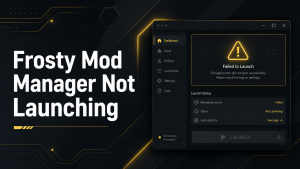
Frosty Mod Manager may occasionally fail to launch games due to issues like incorrect game paths, missing dependencies, incompatible mods, or version mismatches. Identifying the root cause is the first step toward restoring functionality.
This guide provides a quick troubleshooting checklist and practical steps to resolve launch problems while keeping your mod setup safe and stable.
Quick Troubleshooting Checklist
When Frosty Mod Manager fails to launch a game, check the following:
- Verify game path: Ensure Frosty points to the correct installation directory.
- Check mod compatibility: Disable or remove mods that may not be compatible with the current game version.
- Update Frosty and dependencies: Make sure Frosty Mod Manager, any required frameworks, and the game are up to date.
- Run as administrator: Some games require elevated permissions for mods to load correctly.
- Review logs: Check Frosty’s log files for error messages that indicate missing files or conflicts.
- Test a clean profile: Launch the game without mods to confirm the base game runs properly.
- Reinstall or repair: If problems persist, reinstall Frosty or verify the integrity of game files through the launcher.
Following this checklist often resolves the most common launch issues and ensures that Frosty Mod Manager can apply mods without errors.
Common Causes of Frosty Mod Manager Launch Failures
Frosty Mod Manager may fail to launch games for several reasons. Understanding the most common causes helps users address the problem quickly and reduces trial-and-error when troubleshooting.
Problems often relate to integration with game launchers, file paths, or system configurations. Identifying these causes can restore proper mod functionality without damaging game files or Frosty settings.
EA App / Steam integration and launch flow
Games launched through the EA App or Steam require proper integration for mods to load correctly. If Frosty cannot interact with the launcher or detect the game session, the mod manager may fail to start the game.
Common issues include:
- Frosty not recognizing the installed game via the launcher.
- Conflicts between the mod manager and the game’s DRM or security checks.
- Missing runtime permissions or incorrect administrator access when launching Frosty alongside the game.
Ensuring that Frosty has proper permissions and that the launcher is installed and up to date often resolves these issues.
Incorrect install location or wrong executable path
An incorrect game installation location or pointing Frosty to the wrong executable can prevent the mod manager from launching the game. This can happen if the game was moved, installed to a non-standard folder, or if multiple versions exist on the system.
To fix this:
- Confirm the correct game folder and executable.
- Update Frosty’s settings to point to the proper path.
- Avoid moving game files after configuration without updating Frosty.
Correcting the install path ensures that Frosty can locate necessary files and load mods properly during game startup.
Corrupt ModData, datapacks, or Frosty config files
Corrupted ModData, datapacks, or configuration files can prevent Frosty Mod Manager from launching games. Damaged or incomplete files may occur during mod installation, failed updates, or improper shutdowns.
Fixes include deleting or resetting the ModData folder, rebuilding Frosty configuration files, and reinstalling problematic mods. Keeping backups of working configurations helps restore functionality quickly.
Platform cache, permissions, or antivirus interference
Launch failures can also result from platform-related issues. Problems may include corrupted Steam or EA App caches, insufficient file permissions, or antivirus software blocking Frosty or game files.
Steps to resolve these issues:
- Clear the platform’s cache or verify game file integrity.
- Run Frosty as administrator to ensure proper permissions.
- Temporarily disable antivirus or add exceptions for Frosty and game folders.
These steps often restore mod manager access to the game and prevent interference during startup.
Incompatible mods or version mismatches
Using mods that are incompatible with the current game version or Frosty Mod Manager can stop games from launching. Mismatched versions often lead to failed injections, crashes, or startup errors.
To fix this:
- Disable all mods and test the game without them.
- Verify that installed mods match the game version.
- Re-enable mods gradually, checking functionality after each addition.
Ensuring compatibility between mods, game versions, and Frosty releases minimizes launch failures and improves overall stability.
Essential Pre-Checks Before Applying Fixes
Before attempting any fixes for launch issues, performing pre-checks can prevent accidental data loss and ensure that troubleshooting steps are effective. These checks help users avoid common mistakes that can worsen problems or corrupt mod setups.
Taking a few minutes to verify system details and create backups can save significant time and effort during the repair process.

Confirm game platform and executable path
Ensure that Frosty Mod Manager points to the correct game platform (Steam, EA App, etc.) and executable file. Incorrect paths are a common cause of launch failures and can lead to mod injection errors.
Double-checking these paths ensures that Frosty can locate all necessary files and interact properly with the game during startup.
Backup ModData, mods list, and Frosty config
Before making changes, back up your ModData folder, the list of installed mods, and Frosty configuration files. This allows you to restore your working setup if a fix introduces new issues or fails to resolve the problem.
Maintaining backups of key files helps protect your mod collection and prevents the need to Install & Mod Games Fast reconfigure everything from scratch.
Update Frosty Mod Manager and installed mods
Ensuring that both Frosty Mod Manager and installed mods are up to date is a critical step in fixing launch issues. Updates often include bug fixes, compatibility improvements, and support for newer game versions.
Users should download the latest Frosty release from trusted sources and update mods to match the current game version. Testing the game after each update helps identify whether a specific mod or tool is causing the problem.
Close other launchers and background apps
Conflicts between multiple launchers or background applications can prevent Frosty from launching games correctly. Running Steam, EA App, or other software simultaneously may interfere with mod injection and file access.
To minimize conflicts:
- Close all unnecessary applications before starting Frosty.
- Launch the game only through Frosty to ensure proper mod integration.
- Temporarily disable overlays or recording tools that may interfere with the launch process.
Verify Windows account permissions and admin access
Some launch failures occur due to insufficient Windows permissions. Frosty Mod Manager and the game may require administrator access to read or write files during startup.
Steps to ensure proper access:
- Run Frosty as administrator by right-clicking the executable.
- Confirm that your user account has full read/write permissions for the game and mod folders.
- Adjust folder security settings, if necessary, to grant Frosty full access.
Verifying permissions helps prevent errors caused by blocked file access and ensures smoother mod loading.
Step-by-Step Fixes (Priority Order)
When Frosty Mod Manager fails to launch games, following a structured, prioritized approach helps resolve issues efficiently. Applying fixes in the correct order reduces trial-and-error and protects existing mod configurations.
Starting with basic steps like permissions and paths, and then moving to more involved actions, ensures that the simplest solutions are tried first before making larger changes.
Run Frosty as Administrator and ensure correct paths
The first step is to run Frosty Mod Manager as an administrator. This ensures that the tool has full access to game files and can properly inject mods during startup.
Next, verify that the game executable and installation path are correctly set within Frosty. Incorrect paths are a common cause of launch failures, and correcting them often resolves the problem without further troubleshooting.
Install/move Frosty into the game’s root folder if required
If running as administrator and verifying paths do not solve the issue, consider installing or moving Frosty Mod Manager directly into the game’s root folder. Some games require Frosty to be in the same directory to access critical mod-loading files.
After moving the files, recheck configuration settings and ensure that all necessary permissions are applied. This step can fix issues related to file access restrictions or launcher integration problems.
Delete ModData and clear mod caches safely
Corrupted ModData or cached files can prevent Frosty Mod Manager from launching games. Deleting the ModData folder and clearing cached mod files can often resolve these issues.
Before doing this, ensure you have a backup of your current mods and profiles. After clearing, restart Frosty and re-import necessary mods to restore a clean, functioning setup.
Remove problematic datapacks or incompatible mods
Certain datapacks or mods may conflict with the game version or with other modifications, causing launch failures. Identifying and removing these problematic files helps restore stability.
Users can disable mods individually or remove them from the mod list, testing the game after each change to confirm which mod was causing the issue.
Reset or delete the Frosty config file to restore defaults
If configuration errors are suspected, resetting or deleting the Frosty configuration file can restore default settings. This action can fix path issues, incorrect profiles, or corrupted configuration entries.
After resetting, reconfigure the correct game path, profiles, and preferences. Keeping a backup of the original configuration allows easy restoration if needed.
Clear EA App / Steam cache and repair or reinstall the platform client
Sometimes, launch issues occur due to corrupted platform cache or installation problems with Steam or the EA App. Clearing the cache and repairing or reinstalling the client can resolve file access and integration errors.
Steps include clearing temporary files, verifying platform integrity, and ensuring that the launcher is updated to the latest version. This often restores proper communication between Frosty Mod Manager and the game.
Use automated repair tools (Frosty Fix) when needed
Frosty Fix is a utility designed to automatically address common launch and mod-injection issues. It can correct datapath problems, file access errors, and configuration conflicts without manual troubleshooting.
Using Frosty Fix is recommended when other steps fail. Running it after backing up important mod data ensures that changes can be reverted if necessary.
Verify and repair game files via the platform client
Platform clients like Steam or the EA App provide built-in tools for verifying and repairing game files. Running these tools ensures that missing or corrupted files are restored, which often resolves issues that prevent Frosty from launching the game.
After verification, test the game with Frosty Mod Manager to confirm that mods load correctly and the base game functions as expected.
Fix file permission issues or move game files to system drive
Incorrect file permissions can block Frosty Mod Manager from accessing game files. Ensure that your Windows 11 account has full read/write access to the game and mod folders. Moving the game installation to the system drive may also help resolve permission-related launch failures.
Reinstall or update Frosty and required runtimes (.NET, VC++)
Outdated Frosty Mod Manager or missing system runtimes like .NET or Visual C++ redistributables can prevent games from launching. Reinstalling Frosty and updating all required runtimes ensures proper operation and mod compatibility.
Temporarily disable antivirus or add exceptions
Antivirus software can sometimes block Frosty or game files, causing launch failures. Temporarily disabling antivirus or adding exceptions for the Frosty executable and game folders can prevent interference and allow mods to load properly.
Try compatibility mode or update Windows if issues persist
Running Frosty in Windows compatibility mode can fix issues with older game versions or system configurations. Additionally, keeping Windows fully updated ensures that required system libraries and security patches are applied, which can resolve persistent launch problems.
How to Test and Confirm a Successful Fix
After applying fixes to address Frosty Mod Manager launch issues, it’s important to confirm that the game now runs correctly. Testing ensures that modifications, configurations, and system settings are functioning as intended.
A structured testing process helps identify any remaining problems and verifies that the applied solutions were effective.
Launch via Frosty, platform client, or direct game executable
To confirm a successful fix:
- Launch through Frosty Mod Manager: Check that mods load correctly without errors or crashes. Ensure that the game starts smoothly and the desired modifications are applied.
- Launch via platform client: Test the game through Steam or the EA App to verify that the base game runs properly alongside Frosty. This confirms that platform integration is intact.
- Launch directly using the game executable: Running the game directly helps isolate issues related to Frosty or mod conflicts. If the game works here, remaining problems may be mod-specific.
Testing across these methods ensures that both the base game and modded setup are stable, giving confidence that the fix was successful.
Read Frosty and game logs to identify errors
Frosty Mod Manager and the game generate log files that provide detailed information about launch failures or mod conflicts. Reviewing these logs helps pinpoint missing files, incompatible mods, or configuration errors.
Users should check timestamps, error messages, and mod-specific entries to understand the root cause of issues. This step is essential for effectively troubleshooting persistent problems.
Test with minimal mods to isolate issues
If launch problems continue, testing the game with only a minimal set of essential mods can help identify conflicts. Disable all non-critical mods, then re-enable them one by one, checking functionality after each.
This process isolates problematic modifications and ensures that only compatible, stable mods remain active, reducing future launch failures and improving overall stability.
Recovering from a Broken Mod Install
A broken mod installation can prevent Frosty Mod Manager from launching games or cause crashes during gameplay. Recovering from such a situation requires careful steps to restore the game and mod manager to a stable state.
Following a structured recovery process ensures that no data is lost and that future mod installations remain functional.
Remove all mods and restore vanilla game files
The first step is to disable or remove all installed mods. If necessary, verify the game files through Steam or the EA App to restore missing or corrupted vanilla files. This ensures the base game is clean and can run without modifications.
Clearing all mod data and caches helps prevent leftover files from causing further conflicts. Once the game runs correctly in its vanilla state, it’s safe to proceed with reapplying mods.
Restore from backups and safely reapply mods
If backups of ModData, profiles, or configuration files exist, restore them to quickly return to a known working state. Only reapply mods that are confirmed compatible with the current game version.
Reintroduce mods gradually, testing the game after each addition. This cautious approach helps identify problematic modifications early and reduces the risk of breaking the installation again.
Preventive Practices to Avoid Future Issues
Preventing launch problems with Frosty Mod Manager is easier than fixing them. Adopting regular maintenance and careful mod management practices ensures a stable gaming experience and reduces troubleshooting time.
Consistent preventive measures help users maintain compatibility and protect both the game and mod setup from errors or corruption.
Keep Frosty, mods, and the game updated and version-matched
Ensure that Frosty Mod Manager, all installed mods, and the game itself are updated to compatible versions. Version mismatches are a common cause of crashes and launch failures.
Before updating, review changelogs and mod requirements to verify that each component works with the others. Incremental updates help isolate issues if problems arise.
Maintain a mod compatibility checklist and install order
Keep a record of which mods are compatible with the current game version and note their recommended load order. Proper install sequencing prevents conflicts and ensures that dependencies are applied correctly.
Refer to this checklist before adding new mods, especially when using large mod collections or complex configurations.
Regularly back up ModData and Frosty configuration files
Regularly backing up ModData folders, mod lists, and Frosty configuration files safeguards against accidental corruption or misconfigurations. These backups allow users to restore a stable setup quickly if problems occur.
Storing multiple restore points provides flexibility when testing new mods or applying updates, ensuring that a reliable working configuration is always available.
FAQs
Why isn’t my game launching through Frosty Mod Manager?
Games may fail to launch due to incorrect paths, incompatible mods, missing dependencies, or permission/antivirus issues. Checking paths, updating Frosty, and verifying mods often resolves the problem.
How do I know which mod is causing a crash?
Test with a minimal set of mods and re-enable them one at a time. Reviewing Frosty and game logs helps identify which mod is problematic.
Can I recover from a broken mod installation?
Yes, Linux by removing all mods and restoring vanilla game files or using backups. Reapplying mods gradually ensures compatibility and stability.
Does updating Frosty or mods often fix launch issues?
Keeping Frosty, the game, and installed mods updated ensures version compatibility and reduces crashes or errors.
Are backups really necessary?
Yes, regular backups of ModData, profiles, and configurations allow quick restoration of a stable setup if issues or corruption occur.
Conclusion
Frosty Mod Manager is a powerful tool for managing and customizing Frostbite games, but it requires careful configuration and maintenance. Following troubleshooting steps, keeping software and mods updated, maintaining backups, and testing changes systematically ensures a smooth and stable modding experience.
By adopting preventive practices and using trusted resources, users can enjoy customized gameplay while minimizing the risk of crashes, conflicts, or corrupted installations.
Latest Post: