Steam Deck Modding: A Practical Beginner’s Guide
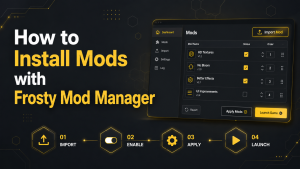
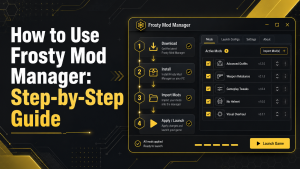
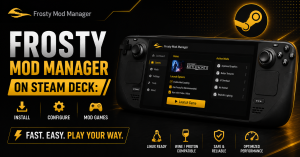
Quick Answer: Frosty Mod Manager on the Steam Deck can manage and install mods for supported games by running the application through a Windows compatibility layer like Proton. After installing Frosty Mod Manager, configure the game path, import your mods, and launch the game through the manager to apply them. If you encounter issues such as launch errors, missing mods, or compatibility problems, updating Proton, verifying game files, and checking Frosty settings usually resolve them. This guide covers the complete installation, setup, and troubleshooting process for using Frosty Mod Manager on Steam Deck.
Steam Deck modding allows users to customize their handheld gaming experience by changing software settings, adding tools, improving performance, and installing supported modifications. With the right approach, beginners can safely explore different ways to personalize their device while keeping the system stable.
This guide explains the basics of Steam Deck modding, including what it involves, who should try it, and the important steps to follow before making changes.
What Is Modding the Steam Deck and Who Should Attempt It
Steam Deck modding refers to modifying the device’s software, settings, or game environment to add new features or improve the overall experience. These changes can include custom tools, performance adjustments, interface improvements, and game-related modifications.
Modding is suitable for users who want more control over their Steam Deck and are comfortable learning basic technical steps. Beginners can start with simple changes, while advanced users may explore deeper system customization.
Before attempting mods, users should understand that some changes may affect system stability or require troubleshooting. Creating backups, following trusted guides, and making changes gradually are recommended for a safer experience.
Steam Deck modding is a good option for:
- Users who want to customize their device.
- Players interested in improving performance or usability.
- Gamers who enjoy experimenting with community-created tools.
Those who prefer a simple plug-and-play experience may want to avoid advanced modifications that require frequent maintenance.
Types of mods: software vs hardware
Steam Deck mods generally fall into two categories: software and hardware. Software mods involve changes to the operating system or game settings, or the addition of third-party tools to enhance functionality, performance, or the gaming experience. These are usually reversible and safer for beginners.
Hardware mods involve physical modifications to the device, such as replacing buttons, adding grips, or upgrading components. These changes are more permanent, often riskier, and require technical skill to avoid damaging the device. Beginners are generally advised to focus on software mods before attempting any hardware alterations.
Intended outcomes and realistic expectations
The goal of Steam Deck modding is to improve usability, performance, and personalization. Users can expect smoother gameplay, better interface customization, or additional tools that simplify game management. However, it is important to have realistic expectations modding will not dramatically increase hardware performance or make the device invincible.
Some modifications may require testing and adjustment to achieve the desired results. Backups and incremental changes help maintain system stability while safely exploring new capabilities.
Legal, Warranty, and Safety Considerations
Before modding the Steam Deck, users should be aware of potential legal, warranty, and safety implications. Some modifications, especially hardware changes or unauthorized software, may void warranties or violate manufacturer policies. Understanding these risks helps users make informed decisions and prevents accidental damage or legal issues.
Safety is also important when applying hardware mods. Incorrect handling or installing unverified software can cause device malfunctions or data loss. Taking precautions and following trusted guides reduces these risks.
Warranty impact and manufacturer policy
Modifying the Steam Deck, particularly hardware components, can void the manufacturer’s warranty. Valve’s policy typically covers defects under normal use, but unauthorized modifications may exclude repairs or replacements. Users should check warranty terms before attempting physical changes.
Software modifications that do not interfere with core hardware are generally safer, but some system-level changes may still affect warranty coverage. Keeping records of any changes and knowing how to restore the device to its original state is recommended.
Legal and copyright considerations for software and emulators
Using software mods, emulators, or custom tools may involve copyright considerations. Installing unauthorized copies of games or distributing modified software can violate legal agreements. Users should only use legally acquired software and follow applicable licensing rules.
Emulators and open-source tools are usually legal if they do
Risks, Precautions, and Required Preparations
Modding the Steam Deck carries risks for both software and hardware. Understanding potential hazards and preparing properly helps minimize damage to the device and protects user data. Careful planning, using the right tools, and following safety guidelines are essential before attempting any changes.
Taking precautions ensures that mods are applied safely and that the system can be restored if problems occur. Preparation also reduces the chance of accidental hardware damage or data loss.
Data risk: backups and verifying images
Before making software changes, users should back up all important data, including saved games, settings, and system images. Verifying backup images ensures they are complete and can be restored if a mod causes errors or corruption.
Regularly updating backups is important, especially when testing new software or applying significant system modifications. Keeping a verified copy allows users to recover quickly from mistakes without losing valuable data.
Organizing parts, screws, and ESD protection
Hardware modifications require careful organization of all components. Users should keep screws, small parts, and internal components labeled and separated to avoid losing or misplacing them during the process.
Electrostatic discharge (ESD) can damage sensitive electronic components. Using an ESD wrist strap, anti-static mat, or other protective measures helps prevent accidental damage while handling internal hardware. Proper workspace preparation reduces risk and ensures a safer modding experience.
Tools, Supplies, and Software You’ll Need
Before starting Steam Deck modding, it’s important to gather all necessary tools and software. Having the right equipment and utilities ensures that both hardware and software modifications can be completed safely and efficiently.
Recommended physical tools and essential software utilities
For hardware mods, the following tools and supplies are recommended:
- Precision screwdrivers: To safely open the device without damaging screws or casing.
- Tweezers and spudgers: For handling small components and carefully disconnecting cables.
- ESD protection: Wrist straps, mats, or anti-static gloves to prevent electrostatic damage.
- Organizers or trays: To keep screws and small parts separated and labeled.
For software mods, essential utilities include:
- Backup and imaging tools: To create and verify system or save backups before applying changes.
- Modding utilities or custom firmware tools: Depending on the software modification being applied.
- Verification tools: To ensure downloaded images or software are complete and authentic.
Having all tools and software prepared before starting helps prevent mistakes, protects the device, and makes the modding process smoother.
Hardware Mod Basics: What You Can Safely Change
Hardware modifications on the Steam Deck can enhance usability and comfort, but it’s important to focus on changes that are safe for beginners. Simple upgrades, such as adding grips, replacing buttons, or swapping protective covers, can improve the experience without risking device functionality.
Understanding which hardware mods are safe helps avoid voiding warranties or causing permanent damage. Always follow trusted guides and handle internal components carefully to minimize risk.
Common safe hardware upgrades
Safe hardware modifications include:
- Replacing or adding grips improves handling and comfort during gameplay.
- Button replacements or enhancements: Adjust the feel or responsiveness without affecting internal circuitry.
- Protective covers or skins: Protect the device from scratches and minor impacts.
- External storage or accessories: Use SD cards or cases that do not interfere with the internal hardware.
These upgrades are generally low-risk and reversible, making them suitable for beginners and casual modders.
When to avoid advanced hardware mods
Advanced hardware modifications, such as replacing internal components, soldering, or overclocking, carry a higher risk of permanent damage and voiding the warranty. Beginners should avoid opening sensitive areas of the device unless they have experience and proper tools.
Modifications requiring internal disassembly or involving the main motherboard are not recommended without extensive preparation. In such cases, improper handling can lead to irreversible damage, data loss, or device failure.
Software Mod Basics: OS, Drivers, and Compatibility
Soft Frosty Mod Manager on Linux focuses on changing the operating system environment, adding custom tools, improving functionality, and adjusting software settings. These modifications can expand the device’s capabilities, but they require careful planning to avoid compatibility issues.
Understanding the relationship between the operating system, drivers, and installed software is important before making changes. Keeping backups and checking compatibility helps maintain system stability.
Installing alternate OS images and managing compatibility
Some users install alternate operating system images to access different features, workflows, or software support. Before installing another OS, it is important to verify that the image supports Steam Deck hardware, including graphics drivers, controls, and performance features.
Managing compatibility involves checking whether games, applications, and hardware components work correctly after changes. Users should test the system gradually and keep a recovery option available in case the new setup causes problems.
Homebrew, emulators, and package management
Homebrew tools allow users to install community-created applications and utilities that are not included in the default system. These tools can add features, improve customization options, and expand software capabilities.
Emulators can also be used to run games from supported platforms, but users should comply with copyright laws and use only legally obtained game files. Package managers help install, update, and remove software components while keeping the system organized.
Using trusted sources and maintaining regular backups helps ensure that software modifications remain safe and manageable.
Beginner Project: Replace Internal SSD and Install a Custom OS
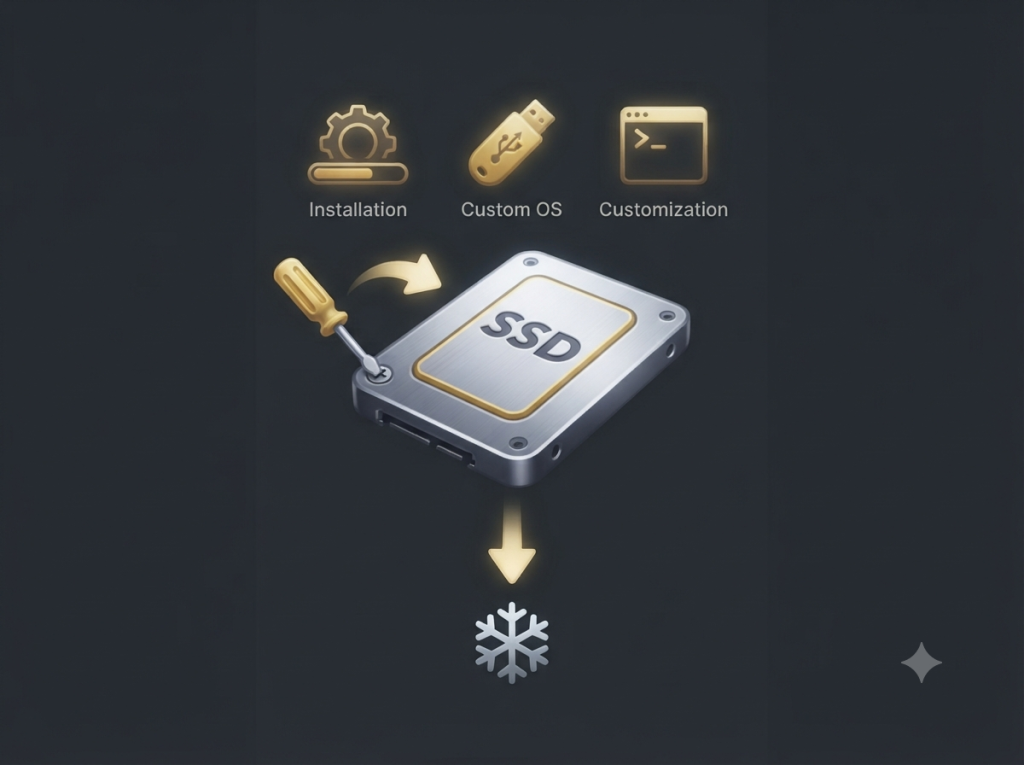
Replacing the internal SSD and installing a custom OS is an advanced beginner project for the Steam Deck. It can increase storage and flexibility but involves opening the device and changing system software. Proper preparation and backups are essential to avoid data loss or damage.
Creating backups and preparing recovery media
Before starting, back up saved games, settings, and personal files. Prepare a recovery image or installation media to restore the system if something goes wrong. Verify these files to ensure they are complete and functional.
SSD replacement, OS installation, and initial setup
Carefully remove the old SSD and install the new one following proper handling procedures. Use the recovery media or custom OS image to install the operating system. After setup, configure drivers, restore data, and test key functions, including controls, display, and storage, to ensure system stability.
Thermal Maintenance and Cooling Improvements
Proper thermal maintenance helps the Steam Deck run cooler, maintain performance, and extend hardware lifespan. Regular cleaning and checking system components prevent overheating and improve overall stability during extended gameplay.
Cooling improvements can include adjusting fan speeds, replacing thermal paste, or adding heat-management accessories. Simple maintenance can often provide noticeable benefits without complex modifications.
Cleaning, thermal interface, and fan checks
Routine cleaning removes dust and debris from vents, fans, and internal components. Checking and, if necessary, replacing the thermal interface material (TIM) between the processor and heatsink can improve heat transfer.
Fans should be inspected for proper rotation and responsiveness. Keeping fans and thermal interfaces in good condition reduces the risk of throttling and maintains consistent performance.
When cooling upgrades are useful
Upgrading cooling components is most useful for users who experience high temperatures, frequent thermal throttling, or plan extended gaming sessions. Modifications such as higher-quality thermal paste or improved airflow solutions can enhance heat management and system stability.
Beginners should focus on cleaning and checking existing components before attempting advanced cooling upgrades, as these carry a higher risk if done incorrectly.
Backups, Recovery, and Rollback Plans
Creating backups and having a recovery plan is essential before making any modifications to the Steam Deck. Proper preparation ensures that users can restore their device to a stable state if software or hardware changes cause issues.
A clear rollback strategy helps protect data, save time during troubleshooting, and maintain system reliability during experimentation with mods or upgrades.
Creating system images and recovery USB
Before applying changes, create a full system image of the Steam Deck, including the operating system, settings, and saved games. A recovery USB drive should also be prepared using official or verified tools to reinstall the system if needed.
Verifying that backups and recovery media are complete and functional ensures they can be relied upon in case of failure. Regularly updating these backups is recommended when making frequent changes.
Recovery checklist and restoring your device
A recovery checklist helps guide users through restoring the Steam Deck safely. Steps include:
- Confirming that backup images and recovery media are accessible.
- Disconnecting unnecessary peripherals to avoid interference.
- Restoring the operating system using the recovery USB.
- Reinstalling essential drivers and software.
- Verifying system functionality and restoring saved games.
Following a structured recovery process minimizes risk and ensures that the Steam Deck returns to a stable and usable state after modifications.
Troubleshooting Common Mod-Related Problems
Modding the Steam Deck can sometimes cause issues such as boot failures, connectivity problems, or device instability. Understanding common problems and knowing how to troubleshoot them helps users restore functionality and maintain a stable setup.
Careful testing, backups, and gradual implementation of mods reduce the likelihood of serious errors and make troubleshooting easier if issues appear.
Device won’t boot or is soft-bricked
A soft-bricked device may fail to start due to incompatible software modifications or corrupted system files. To recover:
- Use a prepared recovery USB or system image to restore the operating system.
- Disconnect external peripherals that could interfere with startup.
- Follow the recovery checklist to ensure all steps are completed correctly.
These steps help return the Steam Deck to a working state without permanent damage.
Wi-Fi, Bluetooth, controller, and storage issues
Connectivity or hardware issues can appear after certain mods or software changes. Common problems include non-functional Wi-Fi, Bluetooth, controllers, or storage devices.
Troubleshooting steps include:
- Resetting network settings and reconnecting devices.
- Checking for driver updates or reinstalling system drivers.
- Verifying that storage devices are properly mounted and accessible.
- Testing each peripheral individually to isolate the issue.
Following these steps allows users to resolve most post-mod problems and restore normal device functionality.
Best Practices for Updating and Preserving Mods
Maintaining a stable modded setup requires careful management of updates and backups. Applying updates safely and keeping records of changes helps prevent conflicts, data loss, or system instability.
Following best practices ensures that mods remain compatible with the Steam Deck or games and reduces troubleshooting time when problems occur.
Applying updates safely and testing changes
Before applying any updates to mods or the system, create a backup of current files and profiles. Test updates on a separate profile or in a controlled environment to verify that they do not cause conflicts or errors.
Only apply updates from trusted sources and review changelogs to understand what changes are included. Gradual updates make it easier to identify the cause if an issue arises.
Documenting modifications and managing backups
Keeping a record of all applied modifications helps track changes and simplifies troubleshooting. Document details such as mod names, versions, installation dates, and applied settings.
Regularly managing backups ensures that previous working configurations can be restored if needed. Organizing backups and maintaining multiple restore points allows users to experiment with new mods while preserving system stability.
Community Resources and Learning Paths
Engaging with the Steam Deck modding community can help users learn best practices, find compatible mods, and troubleshoot common issues. Trusted resources provide guidance, updates, and insights that are often not available in official documentation.
Participating in forums, reading guides, and following experienced modders helps beginners gain confidence while reducing the risk of errors during software or hardware modifications.
Trusted forums, guides, and documentation
Reliable sources include the official Steam Deck forums, reputable community guides, and documentation from mod creators. These resources often include step-by-step instructions, compatibility notes, and tips for safe modding.
When exploring new modifications or techniques, users should:
- Verify information from multiple trusted sources.
- Follow recommended procedures carefully.
- Keep notes and backup files before applying changes.
Using verified community resources ensures a safer modding experience and helps users expand their skills efficiently.
FAQs
Is Steam Deck modding safe for beginners?
Software mods and minor hardware upgrades are generally safe if users follow trusted guides, create backups, and make changes gradually. Beginners should avoid advanced internal hardware modifications until they gain experience.
Will modding void my warranty?
Hardware modifications often void the manufacturer’s warranty, while software changes may have limited impact if they don’t affect core system files. Users should review Valve’s warranty terms before attempting Launching.
Can I recover a bricked Steam Deck?
Yes, using recovery media or a system image allows users to restore the Steam Deck to a working state. Keeping verified backups is essential before making any modifications.
Are emulators and homebrew legal to use?
Using legally acquired games with emulators and homebrew tools is generally allowed. Distributing copyrighted software without permission is illegal, so users should comply with copyright laws.
How do I safely update mods or OS images?
Before applying updates, create backups and test changes incrementally. Using trusted sources and checking compatibility reduces the risk of errors or system instability.
Conclusion
Steam Deck modding offers a way to personalize and enhance both software and hardware aspects of the device. By following proper preparation steps, using trusted resources, and applying changes carefully, users can improve performance, usability, and overall gaming experience.
Maintaining backups, verifying compatibility, and gradually testing mods ensures that modifications are safe and reversible. With these practices, both beginners and experienced users can explore the full potential of the Steam Deck while minimizing risks.
Latest Post: