Troubleshooting Frosty Mod Manager: Fixes When It Won’t Launch Games
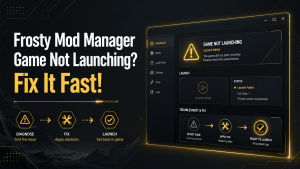
Quick Answer: Frosty Mod Manager Game Not Launching is usually caused by incorrect game configuration, administrator permission issues, outdated mods, antivirus interference, or compatibility conflicts. In most cases, you can fix the problem by updating Frosty Mod Manager, verifying the game files, running the application as an administrator, disabling conflicting mods, and ensuring your game version is supported. This guide explains the most common causes and provides step-by-step solutions to help you launch your game properly with Frosty Mod Manager.
Frosty Mod Manager may occasionally fail to launch games due to configuration errors, missing dependencies, or mod conflicts. Understanding the root cause and following a structured troubleshooting process can quickly restore functionality and maintain a stable Object Reference Not Set.
This guide provides a diagnostic checklist and step-by-step solutions to address common launch problems while protecting your game and mods.
Quick Diagnostic Checklist
Before applying fixes, complete the following checks to ensure a smooth troubleshooting process:
- Verify game paths: Make sure Frosty points to the correct installation folder and executable.
- Check mod compatibility: Confirm that all mods are compatible with the current game version.
- Back up ModData and profiles: Preserve your mod configuration and save data.
- Confirm permissions: Run Frosty as administrator and ensure your account has full read/write access.
- Close other applications: Exit launchers, overlays, and background apps that could interfere.
- Update Frosty and its dependencies: Ensure the mod manager, required runtimes (.NET, VC++), and the game are up to date.
Completing this checklist prepares your system for effective troubleshooting and minimizes the risk of further issues.
Confirm game is supported and Frosty version matches
Ensure that the game you are trying to mod is compatible with Frosty Mod Manager. Verify that the version of Frosty installed supports your game and that any mods are designed for the current game release. Using mismatched versions is a common cause of launch failures.
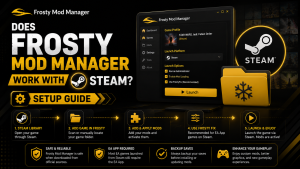
Verify launch platform (EA App, Steam) and correct game path
Check that the correct platform client (Steam, EA App, etc.) is running and that Frosty points to the proper game executable. Incorrect paths or inactive launchers can prevent the game from starting or block mod injection, so updating Frosty’s settings to the correct folder is essential.
Check error messages and Frosty logs
Review Frosty Mod Manager and game log files to identify any error messages or warnings. Logs provide detailed information about missing files, mod conflicts, or configuration issues, helping pinpoint the exact cause of launch failures.
Quick tests: run vanilla game, disable mods, try a different profile
Perform simple tests to isolate the problem:
- Launch the game without any mods to confirm the base installation works.
- Disable all mods in Frosty and re-enable them one at a time to identify conflicts.
- Try a different Frosty profile to check whether issues are specific to a particular configuration.
These tests help determine whether the problem lies with mods, Frosty settings, or the game itself.
Common Causes of Launch Failures
Games may fail to launch through Frosty Mod Manager for several recurring reasons. Identifying these common causes helps focus troubleshooting efforts and reduces unnecessary changes to the setup.
Addressing permissions, paths, and compatibility issues usually resolves most launch problems efficiently.
Permission and compatibility issues
Insufficient Windows permissions or lack of administrator access can prevent Frosty from reading game files or injecting mods. Compatibility issues with the game version, mods, or Frosty itself are also frequent causes of launch failures. Running Frosty as administrator and confirming version matches often resolves these problems.
Incorrect installation location or wrong executable
If Frosty points to the wrong game folder or executable, the mod manager may fail to launch the game. This can occur if the game was installed in a non-standard location, moved after installation, or multiple versions exist. Updating Frosty with the correct paths ensures proper file access and mod injection.
Corrupted ModData, config files, or problematic mods
Corrupted ModData folders, Frosty configuration files, or problematic mods can prevent the game from launching. Damaged or incomplete files often occur during failed installations or updates. Deleting or rebuilding ModData and resetting the configuration can restore functionality, while isolating and removing problematic mods prevents repeated errors.
Platform client (EA App/Steam) or cache issues
Issues with the platform client, such as corrupted caches, outdated versions, or blocked files, can interfere with game launches. Clearing the platform cache, verifying game integrity, or reinstalling the client often resolves access issues and ensures Frosty can interact with the game properly.
Step-by-Step Fixes
When Frosty Mod Manager fails to launch games, applying fixes in a structured order helps restore functionality quickly. Starting with basic permission and path adjustments can resolve many common issues before attempting more complex solutions.
Following these steps minimizes the risk of damaging mod configurations or the game installation.
Run Frosty as administrator and set compatibility
Running Frosty with administrator privileges ensures full access to game files and proper mod injection. Right-click the Frosty executable, select “Run as administrator,” and, if necessary, enable Windows compatibility mode for older game versions.
Move Frosty to game root folder and confirm paths
If issues persist, consider installing or moving Frosty into the game’s root directory. This allows the manager to access critical files more reliably. After moving, double-check that the executable path and game folder settings in Frosty are correct.
::>
Delete/regenerate ModData and reset configs
Corrupted ModData or configuration files can prevent Frosty from launching games. Deleting these folders and allowing Frosty to regenerate them often restores default settings and resolves file-related errors. Always back up working profiles before performing this step.
Clear platform cache and re-login
Clearing the Steam or EA App cache removes corrupted temporary files that may prevent games from launching. After clearing, log back into the platform client to ensure proper authentication and restore communication with Frosty.
Verify and repair game files
Use the platform client’s built-in verification or repair tools to check for missing or corrupted game files. Repairing the installation ensures that the base game is stable, allowing Frosty to load mods without interference.
Remove incompatible commentary/datapacks
Problematic datapacks or commentary mods can cause crashes or prevent the game from starting. Identify and remove any incompatible files to eliminate conflicts and restore stable game launches.
Mod Conflict Resolution
Conflicts between multiple mods are a common cause of crashes or launch failures in Frosty Mod Manager. Fix Frosty Mod Manager Requires careful testing and organized management to identify incompatible modifications without affecting the entire setup.
A structured approach allows users to maintain stability while safely reintroducing mods.
Isolate problematic mods incrementally
Disable all mods and then re-enable them one at a time, testing the game after each addition. This method helps pinpoint the specific mod or combination causing conflicts, allowing targeted removal or replacement without affecting other mods.
Create clean profiles and add mods one by one
Using separate profiles for different mod setups helps isolate issues and maintain organized configurations. Create a clean profile and add mods individually, testing functionality at each step. This ensures that each mod is compatible and reduces the risk of recurring conflicts.
Check load order, dependencies, and compatibility
Proper load order is essential to prevent mods from overwriting each other or causing conflicts. Verify that dependent mods are loaded in the correct sequence and ensure that all mods are compatible with the current game version. Adjusting the order and confirming dependencies helps maintain stability.
Rebuild merged mods/archives
If merged mods or archives are causing issues, rebuild them using Frosty’s tools or the mod editor. Rebuilding ensures that the merged files are correctly structured, compatible with the game, and free of corruption, reducing crashes and improving overall performance.
Log Analysis Before Asking for Help
Before seeking assistance with Frosty Mod Manager issues, analyzing logs and gathering relevant information can help support teams or community members diagnose the problem more efficiently. Detailed preparation often leads to quicker, more accurate solutions.
Locate and read key entries in Frosty logs
- Open Frosty’s log files located in the installation or ModData folder.
- Look for timestamps corresponding to the attempted launch to identify errors.
- Note error messages, failed mod injections, or missing files that may indicate the cause of the problem.
Gather platform logs, system specs, and error screenshots
- Collect logs from the game’s platform client (Steam, EA App) showing launch attempts or failures.
- Record system specifications including OS version, hardware details, and installed runtimes.
- Take screenshots of error messages or crash notifications to provide visual context.
Providing this information when asking for help allows others to quickly pinpoint issues and suggest accurate solutions.
Preventative Measures
Taking proactive steps can prevent Frosty Mod Manager from failing to launch games and minimize mod-related conflicts. Regular maintenance and careful testing ensure a stable and enjoyable modding experience.
Keep Frosty, mods, and game updated
Ensure that Frosty Mod Manager, all installed mods, and the game itself are kept up to date. Compatibility issues often arise when versions do not match, so updating regularly reduces the risk of crashes and errors.
Maintain backups and changelogs
Create backups of ModData, profiles, and configuration files before making changes. Keeping a changelog of installed mods, versions, and load order helps track modifications and simplifies troubleshooting if issues arise.
Test new mods in isolated profiles
Use separate profiles for testing new mods before adding them to your main setup. This prevents conflicts and ensures that only compatible modifications are applied, maintaining overall stability and reducing the likelihood of launch failures.
Seeking Community or Developer Support
When troubleshooting Frosty Mod Manager issues that cannot be resolved individually, reaching out to the community or developers can provide guidance. Providing clear and detailed information increases the likelihood of receiving effective help quickly.
Following proper etiquette and preparation ensures that support requests are addressed efficiently.
Best places to ask for help and format requests
- Use official Frosty Mod Manager forums, GitHub repositories, or modding community boards.
- Clearly describe the problem, including when it occurs and any error messages.
- Use a structured format: problem description, steps taken, and observed results.
Include logs, mod lists, and reproducible steps
- Attach Frosty logs and platform logs to provide technical context.
- List all active mods, versions, and load order to identify potential conflicts.
- Provide step-by-step instructions to reproduce the issue so others can diagnose it and suggest solutions accurately.
Preparing requests this way ensures that community members or developers can troubleshoot efficiently and offer precise guidance.
FAQs
What to do if Frosty won’t launch the game?
Check that the game path and executable are correct, run Frosty as administrator, and ensure required dependencies (.NET, VC++) are installed. Updating Frosty and temporarily disabling antivirus may also help.
How to identify which mod is causing a crash?
Disable all mods and re-enable them one by one while testing the game after each addition. Reviewing Frosty and game logs helps pinpoint the problematic mod or combination of mods.
How to safely test and apply multiple mods?
Use isolated profiles to test new mods individually before adding them to your main setup. Maintain a mod list, check compatibility, and verify load order to prevent conflicts and crashes.
Where to find official help or community support?
Official Frosty websites, GitHub repositories, and community forums provide guidance, troubleshooting tips, and reliable download links. Engaging with these sources ensures access to accurate information and solutions.
Conclusion
Frosty Mod Manager is a powerful tool for customizing and managing Frostbite games, but successful modding requires careful setup, version management, and troubleshooting. Following checklists, maintaining backups, systematically testing mods, and keeping software updated ensure stability and reduce errors.
Engaging with official resources and community support provides guidance, resolves complex issues, and helps users maximize the modding experience. By adopting preventive practices and organized workflows, players can enjoy a stable, mod-enhanced gaming experience with minimal risk.
Latest Post: