How to Troubleshoot and Fix Frosty Mod Manager
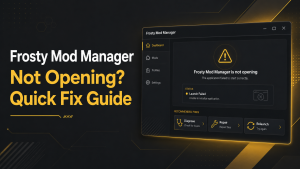
Quick Answer: Frosty Mod Manager Not Opening is commonly caused by missing dependencies, corrupted configuration files, insufficient administrator permissions, antivirus interference, or incompatible software versions. In most cases, you can resolve the issue by running Frosty Mod Manager as an administrator, updating to the latest version, reinstalling required components such as the .NET Framework, clearing corrupted cache files, and temporarily disabling antivirus software. This guide walks you through the most effective fixes to get Frosty Mod Manager opening and working properly again.
Frosty Mod Manager may occasionally fail to launch games due to issues like incorrect paths, missing dependencies, or incompatible mods. Knowing the right troubleshooting steps helps restore functionality quickly and safely.
This guide provides a structured approach to identifying and fixing common problems, ensuring a stable modding experience.
Quick Checklist Before You Start
Before attempting any fixes, complete these pre-checks to prevent accidental data loss and make troubleshooting more effective:
- Verify game paths: Ensure Frosty points to the correct installation folder and executable.
- Check mod compatibility: Confirm that installed mods are compatible with the current game version.
- Back up ModData and profiles: Safeguard mod configurations and data before making changes.
- Review permissions: Make sure your Windows account has full read/write access and run Frosty as administrator.
- Close other applications: Exit launchers, overlays, and background apps that may interfere with Frosty.
- Update tools and runtimes: Ensure Frosty, required frameworks (.NET, VC++), and the game are up to date.
Completing this checklist prepares your system for effective troubleshooting and reduces the risk of additional problems.
Back up saves and mod lists
Before making any changes, back up all game saves, ModData folders, and mod lists. This ensures that you can restore your setup if a fix introduces new issues or causes data loss.
Confirm Frosty and game versions
Verify that Frosty Mod Manager and all installed mods are compatible with the current game version. Using outdated or mismatched versions is a common cause of launch failures and mod conflicts.
Close launchers/antivirus; run as administrator
Exit Steam, EA App, and other background applications that could interfere with Frosty. Temporarily disable antivirus software if necessary, and run Frosty as administrator to ensure proper file access and mod injection.
Identify the Problem
Before applying fixes, it’s important to determine the root cause of the issue. Understanding whether Frosty Mod Manager itself or the game is failing helps select the most effective troubleshooting steps.
Accurate identification prevents unnecessary changes and ensures that fixes target the real source of the problem.
Frosty won’t launch or crashes
If Frosty Mod Manager fails to open or crashes on startup, common causes include corrupted configuration files, missing dependencies such as .NET or VC++ runtimes, or access being blocked by antivirus or permissions. Checking logs and running Frosty as administrator can help identify the exact cause.
Game won’t launch
If Frosty opens but the game fails to start, the problem is often due to incorrect game paths, incompatible mods, or conflicts between multiple modifications. Verifying the game executable, updating mods, and testing a clean profile can help isolate and resolve the issue.
Mods don’t apply or behave incorrectly
When mods fail to apply or do not function as expected, it is usually due to version mismatches, incorrect load order, or missing dependencies. Reviewing mod requirements and arranging them properly in Frosty often resolves these issues.
Game crashes after mods
Crashes after applying mods can result from conflicts between multiple modifications or incompatible files. Testing mods individually and disabling conflicting mods helps identify the cause and restore stability.
Frosty shows the wrong game path
If Frosty displays an incorrect game path, it may prevent the game from launching or loading mods. Updating the game executable path in Frosty settings to the correct installation folder ensures proper mod injection and game startup.
Fix Frosty Launch Issues
If Frosty Mod Manager game fails to start or launches incorrectly, applying basic fixes often resolves the problem. Addressing permissions and required dependencies ensures the tool can access game files and load mods properly.
Following these steps helps restore Frosty functionality without affecting installed mods or profiles.
Run as administrator
Running Frosty as an administrator grants full access to game files and system resources. Right-click the Frosty executable and select “Run as administrator” to prevent permission-related errors that can block launch or mod injection.
Install/repair dependencies
Frosty requires system dependencies such as the latest .NET framework and Visual C++ redistributables. Missing or outdated dependencies can prevent the manager from launching or cause crashes. Installing or repairing these packages ensures Frosty runs correctly and supports all mod functions.
Reinstall Frosty and use latest build
If running as administrator and updating dependencies doesn’t fix the issue, reinstalling Frosty Mod Manager can help. Use the latest stable build from a trusted source to ensure compatibility with your game and mods. A fresh installation removes corrupted files and restores default configurations.
Check antivirus/firewall
Antivirus software or firewall settings may block Frosty from accessing necessary files or injecting mods. Temporarily disable these protections or add exceptions for Frosty and the game folders to prevent interference during launch.
Fix Game Launch Problems
If the game fails to start through Frosty Mod Manager, addressing platform-related issues can often resolve the problem. Ensuring proper launcher operation and correct game paths is essential for successful mod loading.
Following these steps helps restore game functionality while maintaining mod configurations.

Launch platform first
Start the game launcher (e.g., Steam or the EA App) before launching the game through Frosty. This ensures that the platform is running and authenticated, which allows Frosty to inject mods and access necessary files.
Ensure correct game executable
Verify that Frosty points to the correct game executable. An incorrect path can prevent the game from starting or cause errors during mod loading. Update Frosty’s settings to match the actual installation folder and executable.
Clear platform cache if needed
Corrupted platform cache can interfere with game launches. Clearing the launcher cache or verifying the integrity of game files via Steam or EA App often resolves issues with missing or corrupted files.
Fix Mod Issues
Problems with mods can prevent games from launching or cause crashes. Verifying mod files, checking dependencies, and maintaining proper load order helps ensure stable gameplay.
Taking a structured approach reduces conflicts and allows mods to function as intended without affecting other parts of the game.
Verify mod format, version, and dependencies
- Ensure the mod is in the correct .fbmod format supported by Frosty.
- Check that the mod version matches the current game version.
- Confirm that all required dependencies are installed before enabling the mod.
Check load order and conflicts
- Review the sequence in which mods are loaded to prevent overwrites.
- Disable mods that modify the same assets to isolate conflicts.
- Adjust the load order gradually while testing the game after each change.
Rebuild mod list safely
- Remove inactive or problematic mods before rebuilding the list.
- Re-import mods carefully to maintain correct order and dependencies.
- Keep backups of your not working configuration to restore if issues occur.
Proper verification and organized mod management help prevent crashes and improve stability when using Frosty Mod Manager.
Fix Game Crashes After Mods
Game crashes after applying mods are usually caused by conflicts between multiple modifications, outdated files, or incorrect configurations. Identifying and addressing the specific cause helps restore stability and prevents repeated crashes.
Systematic testing and careful mod management ensure that changes do not interfere with game performance or other modifications.
Disable mods incrementally
If the game crashes, start by disabling all mods and then re-enable them one at a time. This helps identify the specific mod or combination of mods causing instability. Testing incrementally allows you to isolate conflicts without affecting the entire setup.
Update/remove outdated mods
Outdated mods may not be compatible with the current game version or with other active mods. Updating these mods to the latest compatible version or removing them entirely can often fix crashes and restore proper functionality.
Verify game files and test vanilla
Before troubleshooting mods further, verify the integrity of the game files through the platform client (Steam, EA App, etc.). Running the game without any mods ensures that the base installation is stable. Once confirmed, reintroduce mods carefully to maintain a reliable setup.
Path and Configuration Fixes
Incorrect game paths or corrupted Frosty configuration files are common reasons why games fail to launch. Correcting paths and resetting configurations can restore proper communication between Frosty Mod Manager and the game.
Ensuring accurate paths and clean settings helps prevent mod injection errors and improves overall stability.
Set correct game path
Verify that Frosty points to the correct game installation folder and executable. An incorrect path can block mod loading or prevent the game from starting. Update the path in Frosty’s settings to match the actual location of the game files.
Delete/reset Frosty config and caches
Corrupted configuration or cached files can cause launch issues. Deleting or resetting Frosty’s config files and clearing cached ModData allows the manager to rebuild clean settings. Always back up working configurations before resetting to avoid losing important setups.
Best Practices
Following best practices helps maintain a stable modding setup and reduces the risk of crashes, conflicts, or corrupted files. Careful management of mods and tools ensures a smoother gaming experience with Frosty Mod Manager.
Keep backups and document mod sets
Regularly back up ModData, profiles, and configuration files. Document installed mods, versions, and load order to simplify troubleshooting and restore a working setup if problems occur.
Install mods one at a time
Adding multiple mods simultaneously can make it difficult to identify conflicts or errors. Install and test each mod individually to ensure compatibility before combining them in a full setup.
Keep Frosty, game, and platform updated
Ensure Frosty Mod Manager, the game, and the platform client (Steam, EA App, etc.) are always up to date. Updates often include bug fixes, performance improvements, and better compatibility with mods, reducing the likelihood of launch issues.
Resources and Help
Accessing official resources and community support is essential for safe and effective modding with Frosty Mod Manager. Trusted sources provide reliable downloads, guides, and troubleshooting advice.
Using these resources helps users stay up to date, avoid corrupted files, and resolve common problems efficiently.
Official downloads and community support
Official Frosty Mod Manager websites and repositories are the safest places to download the tool and its updates. Community forums, modding guides, and discussion groups offer practical advice, installation instructions, and compatibility tips. Engaging with these resources ensures access to verified information and helps maintain a stable modding setup.
FAQs
What should I do if Frosty Mod Manager won’t launch at all?
Check that your game path and executable are correct, run Frosty as administrator, and ensure required dependencies (.NET, VC++) are installed. Updating Frosty to the latest version and temporarily disabling antivirus software can also help.
How can I identify which mod is causing game crashes?
Disable all mods, then re-enable them one at a time, testing the game after each change. Reviewing Frosty and game logs can help pinpoint the mod or combination causing instability.
How do I ensure mods are applied correctly and in the right order?
Verify that each mod is compatible with the game version and check the recommended load order. Use Frosty profiles to organize mods and test them incrementally to prevent conflicts.
Where can I find official support or community help for Frosty issues?
Official Frosty Mod Manager websites, repositories, and forums provide trusted downloads and documentation. Community discussion boards, mod guides, and social groups offer advice, troubleshooting tips, and installation guidance.
Conclusion
Frosty Mod Manager is a powerful tool for managing and customizing Frostbite games. Following proper setup, maintaining backups, updating software and mods, and carefully testing changes ensure a stable and enjoyable modding experience. Using trusted resources and community support further enhances reliability and helps resolve issues quickly.
Latest Post: